
 By
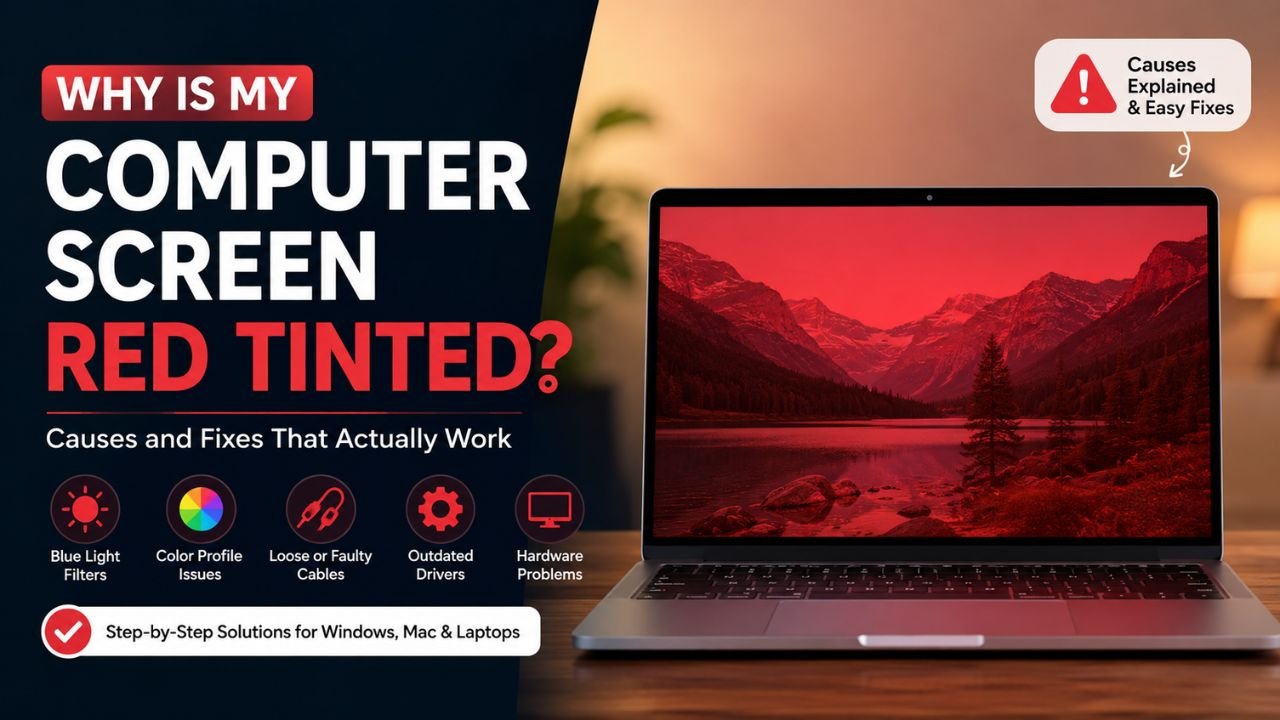
By If your computer screen is red tinted out of nowhere, it’s easy to assume the worst: a dying monitor, a fried graphics card, or some deep hardware fault. In reality, most cases of a red-tinted display come down to a handful of software settings or a loose cable, and you can usually fix them in a few minutes without spending a rupee on repairs. If you notice a red tint on screen, this guide walks through every common reason a screen turns red, orange, or pink and gives you a clear, step-by-step way to get your colors back to normal on Windows, Mac, and laptops alike. A red tint on monitor displays can often be corrected by checking these settings first. This guide was last reviewed in August 2026 against the fixes readers report working most often.
Quick Answer: What Usually Causes a Red-Tinted Screen
In most cases, a red tint on monitor displays happens because of one of these five things:
- A blue light filter (Night Light, Night Shift, or f.lux) is turned on
- The color profile or calibration settings have been changed or corrupted
- A loose or damaged display cable (HDMI, DisplayPort, or VGA)
- Outdated or corrupted graphics drivers
- A failing backlight or panel on the monitor itself
A red tint on screen is often caused by software settings rather than permanent hardware damage. The first two causes are software-related and fixable in under a minute. The rest need a bit more troubleshooting, which we’ll cover below. If the red tint on monitor disappears immediately, the display hardware is likely fine.
Also read: Artifacting on Screen | Pressure Marks on Laptop Screen | Bug in Monitor | Green Dots on Laptop Screen
Why Screens Turn Red: The Full List of Causes
1. Blue Light Filters Left On
This is by far the most common reason a laptop screen red tint appears. Windows, macOS, and most phones ship with a built-in blue light filter designed to reduce eye strain in the evening. When it’s active, it shifts the whole display toward warmer tones which often looks like a strong reddish screen, especially if the intensity slider is set high. If you suddenly notice a red tint on screen in the evening, checking the blue light filter should be your first step. A red tint on monitor may become more noticeable when the display brightness is increased.
How to check on Windows:
- Go to Settings > System > Display
- Scroll down to Night Light and toggle it off
- If it’s off but you still see a red tint on monitor colors, check the schedule; it may be set to turn on automatically at certain hours
How to check on Mac:
- Open System Settings > Displays
- Click Night Shift and turn the schedule to Off
If turning this off instantly fixes the reddish screen, you’re done; no further troubleshooting is needed. This simple setting can create a noticeable red tint on screen without indicating a problem with the monitor itself.
2. Color Profile or Calibration Issues
Every display uses an ICC color profile to render colors accurately. If this profile gets corrupted, replaced, or manually miscalibrated, your computer screen is red tinted even with all filters switched off. This tends to happen after a Windows update, a graphics driver reinstall, or manual tweaking in the color management panel.
A changed color profile can make a red tint on monitor appear across the entire display. In some cases, the effect can be subtle, while in others the red tint on screen can make whites, grays, and other colors look noticeably warmer. Checking the monitor settings is a useful first step when you notice a red tint on monitor.
Fix on Windows:
- Search for “Color Management” in the Start menu
- Select your display, then check which profile is active
- Try switching to the default sRGB profile, or click “Reset my settings to the Windows default”
Fix on Mac:
- Go to System Settings > Displays > Color Profile
- Select “Color LCD” or the standard profile listed for your model
Resetting the color profile is particularly useful when a red tint on monitor appears immediately after a system or graphics update. This is one of the easiest ways to troubleshoot a red tint on monitor after an update.
3. Loose or Faulty Display Cables
If your screen has a red tint on screen only in certain sections, or the tint flickers when you move the cable, the culprit is almost always the connection. HDMI and DisplayPort cables carry color data across individual pins, and a bent pin or partial connection can drop just the red or blue channel, throwing off the whole image.
A loose connection can therefore create a red tint on monitor that changes when the cable is moved. This is different from a software setting because the appearance may change depending on how firmly the cable is connected.
What to try:
- Unplug and firmly reseat the cable at both ends
- Test a different cable if you have one
- Try a different port on your PC or laptop (many GPUs have more than one HDMI or DisplayPort output)
- If you’re using an adapter (USB-C to HDMI, for example), test without it
This is especially common with external monitors and multi-monitor setups, where cables get shifted or partially unplugged during desk cleanups. If only one monitor shows a red tint on screen, checking its cable and port can quickly identify the problem. A persistent red tint on monitor may also indicate a connection problem.
Read more: BMPS 2026 Semi Finals Full Schedule | Valorant in 2026 | BMPS 2026 Winner
4. Outdated or Corrupted Graphics Drivers
Your graphics card driver is responsible for translating what your software wants to display into actual pixel colors. When that driver is outdated, buggy, or corrupted after a bad update, a red tint on screen or general color distortion can appear across the whole desktop, not just in one app.
Graphics driver problems can also produce a red tint on monitor that remains after you restart the computer. If display settings appear normal but the colors are still incorrect, the graphics driver should be included in your troubleshooting process.
How to fix it:
- Open Device Manager, expand Display Adapters, right-click your GPU, and select Update Driver
- If updating doesn’t help, uninstall the driver completely and let Windows reinstall a fresh copy on restart
- For NVIDIA, AMD, or Intel GPUs, downloading the latest driver directly from the manufacturer’s site is usually more reliable than Windows Update
Once the driver is updated or reinstalled, check whether the red tint on screen has disappeared. If the issue remains, move on to checking the cable, color profile, and hardware. Checking the display after updating the driver can help confirm whether the red tint on monitor was software-related.
5. A Failing Backlight or Panel (Hardware Cause)
If you’ve ruled out software settings, cables, and drivers, and your computer screen is red tinted, flickering, or shows the tint only on part of the screen, you may be looking at a hardware issue. LED backlights are made of red, green, and blue sub-pixels or diodes; when one channel starts failing, the display leans toward whichever colors are still working, often producing a reddish screen or a pink cast.
A persistent red tint on monitor can therefore be a warning sign when it remains after all software troubleshooting has been completed. Likewise, a red tint on screen that appears before the operating system starts is more likely to involve the display hardware.
Signs this is hardware, not software, include:
- The red tint persists even in BIOS/UEFI screens (before Windows loads)
- It appears on a different device when you connect the same monitor
- The tint gets worse with heat, or after the device has been on for a while
- Physical damage, drops, or spills happened recently
If any of these apply, especially on a laptop screen, professional repair or replacement is usually the only real fix. Avoid repeatedly changing software settings when the red tint on screen clearly continues outside the operating system.
Step-by-Step Troubleshooting Order
When you’re not sure which of the above applies, work through the fixes in this order; it moves from fastest and most common to least common:
- Turn off Night Light / Night Shift / any blue light app running in the background
- Restart the computer (this clears temporary display glitches)
- Reset the color profile to sRGB or default
- Reseat or swap the display cable
- Update or reinstall the graphics driver
- Test the monitor on a different device
- If the tint follows the monitor to another device, book a repair or replacement
If you are dealing with a red tint on monitor, following this sequence helps prevent unnecessary repairs. Start with the simplest software settings before assuming the display panel is damaged.
Most people find their fix within the first two or three steps; the blue light filter alone accounts for a large share of red tint on monitor complaints reported in tech support forums. A red tint on screen that disappears after turning off Night Light is generally not a sign that the monitor is failing. This simple process can resolve a red tint on monitor without professional repair.
Laptop-Specific Red Tint Issues
A laptop screen red tint has a couple of extra possible causes beyond what applies to external monitors, because the display is wired directly into the motherboard. A red tint on screen that appears only on a laptop can therefore require slightly different troubleshooting.
- Adaptive brightness or “True Tone”-style features: Some laptops shift color temperature automatically based on ambient light sensors. Turning this off in display settings can resolve a persistent warm or reddish cast.
- Display cable inside the hinge: On laptops, the ribbon cable connecting the screen to the motherboard runs through the hinge and can wear out from repeated opening and closing, sometimes causing partial red or pink tinting near the hinge area.
- GPU switching (integrated vs. dedicated): On laptops with both integrated and dedicated graphics, a driver conflict during switching can occasionally cause a brief color shift until the display resyncs.
If a laptop screen red tint appears only when the lid is opened or closed at certain angles, that’s a strong sign of an internal cable issue rather than a settings problem. A red tint on monitor is less likely to be related to a laptop hinge cable because external monitors use a separate connection.
When to Call a Professional
Software fixes solve the vast majority of cases, but it’s worth getting a professional opinion when:
- The tint appeared after a physical drop or spill
- It gets progressively worse over days or weeks
- It shows up before the operating system even loads
- The screen also flickers, shows lines, or has dead pixels alongside the red tint
If the red tint on screen continues after you have reset the display settings, checked the cable, and updated the driver, professional diagnosis can help determine whether the panel or backlight is failing.
Catching a failing backlight or panel early can sometimes mean a simpler repair instead of a full screen replacement later. This is particularly important when a red tint on monitor becomes stronger over time.
Read more about: AI Regulation 2026 | Perplexity Comet | Context7 AI | What is Manus AI?
Final Thoughts
A red-tinted screen looks alarming the moment it appears, especially if it happens without warning while you’re in the middle of work. But in the vast majority of cases, it is not a sign of permanent damage; it is a settings issue, not a hardware failure. Before assuming the worst, work through the fixes in order: turn off Night Light or Night Shift, reset your color profile to the default, restart the machine, and check that your display cable is fully seated. These four checks alone resolve many reports of a red tint on screen, and they take only a few minutes.
If you have gone through every software fix and the tint still will not go away, that is the point to stop troubleshooting on your own and get a proper diagnosis. A red tint on monitor that persists in the BIOS screen, follows the monitor to a different device, or worsens with heat almost always points to a failing backlight or panel rather than a setting you have missed. For laptops in particular, where the display is harder to replace at home, a repair technician can confirm the cause and prevent a small issue from turning into a full screen replacement. Knowing these signs can help you determine whether the red tint on monitor needs professional attention.
Frequently Asked Questions
Q1: Why did my monitor suddenly turn red?
A sudden red screen is often caused by Night Light, color settings, HDR, a faulty cable, or a graphics driver issue.
Q2: Can HDMI cause a red tint on a monitor?
Yes. A loose, damaged, or faulty HDMI cable can cause incorrect colors and a red or pink tint.
Q3: How do I fix a red screen on Windows 11?
Turn off Night Light and Color Filters, check HDR settings, and restart the graphics driver using Win + Ctrl + Shift + B.
Q4: Why is my monitor red after a Windows update?
A Windows or graphics driver update can sometimes change color profiles or display settings, resulting in a red tint.
Q5: Can a red tint damage my monitor?
Usually, no. A red tint is often caused by software or settings, although a persistent tint can indicate a hardware problem.
Q6: Why is only one monitor showing a red tint?
If other displays look normal, check that monitor’s cable, port, color settings, and display profile first.
Q7: How can I tell if my red screen is a hardware problem?
If the red tint remains in BIOS, appears without a connected computer, or follows the monitor to another device, hardware may be the cause.
Q8: Will resetting my monitor fix the red tint?
It can help if incorrect RGB, color temperature, or display settings caused the tint, but it will not fix damaged hardware.


6 Comments