
 By
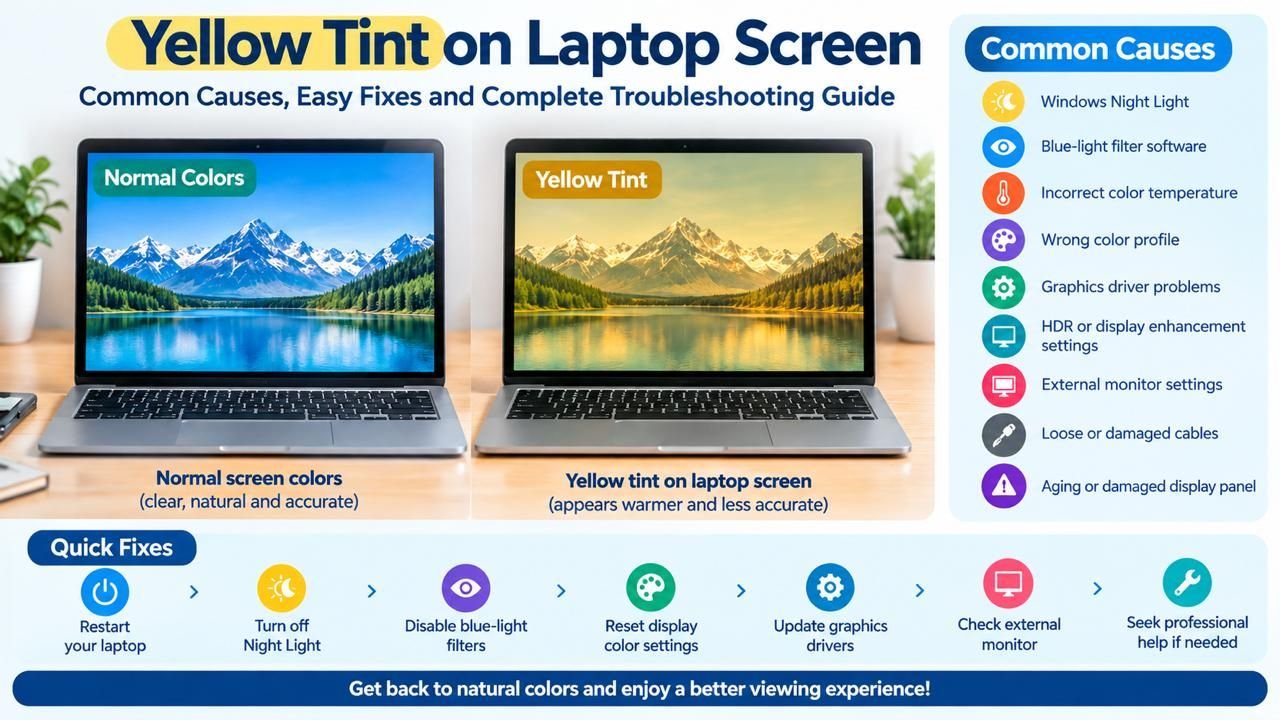
By A Yellow Tint on Laptop Screen can make white backgrounds look cream, beige, or slightly orange. Photos may lose their natural colors, videos can appear warmer, and everyday browsing may become uncomfortable. If you are experiencing a Yellow Tint on Laptop Screen, understanding the possible cause can help you choose the right solution.
The good news is that a yellow-looking display does not always mean the laptop screen is damaged. Windows Night Light, blue-light filters, incorrect color temperature, display profiles, graphics drivers, and HDR settings can all change how colors appear. These settings are worth checking whenever a Yellow Tint on Laptop Screen suddenly appears.
However, if the discoloration continues after changing software settings, the problem could be related to the display panel, internal cable, or other hardware. A persistent Yellow Tint on Laptop Screen should therefore be checked systematically.
This guide explains the common causes and practical ways to fix the Yellow Tint on Laptop Screen without immediately replacing your screen.
Also read about: Why Is My Computer Screen Red Tinted? | Dell Display Problem | Green Dots on Laptop Screen | White Dots on Monitor
Quick Answer: Why Is My Laptop Screen Yellow?
The most common causes include:
| Possible Cause | What You May Notice | Easy Solution |
| Night Light | Screen looks warm or orange | Turn Night Light off |
| Blue-light filter | White looks yellowish | Disable eye comfort mode |
| Warm color mode | Overall display looks yellow | Select Standard or Neutral |
| Color profile | Unusual or inaccurate colors | Reset color profile |
| Graphics driver | Color or display problems | Update or reinstall driver |
| HDR settings | Colors look different | Test with HDR disabled |
| Monitor settings | External screen looks yellow | Reset monitor settings |
| Hardware issue | Tint remains everywhere | Get the display inspected |
Before assuming the panel has failed, check the simple software causes first. These basic checks can often resolve a Yellow Tint on Laptop Screen without requiring professional repair.
What Causes a Yellow Tint on Laptop Screen?
There are several possible reasons for a warm-looking display. Some are related to Windows settings, while others involve graphics software or physical components. Identifying the exact cause of the Yellow Tint on Laptop Screen can make troubleshooting much easier.
1. Windows Night Light Is Turned On
Windows Night Light reduces blue light and gives the display a warmer appearance. This can be useful in the evening, but it can also make a Yellow Tint on Laptop Screen appear unexpectedly.
Night Light can also be scheduled. As a result, your display may become yellow automatically at a particular time. If the Yellow Tint on Laptop Screen appears mainly at night, check this setting first.
To check it:
- Open Settings.
- Select System.
- Click Display.
- Find Night Light.
- Turn it off.
- Check the display again.
If the screen immediately returns to normal, Night Light was probably responsible for the Yellow Tint on Laptop Screen.
2. Blue-Light Filter or Eye Comfort Mode
Many laptops include their own display protection features. Depending on the manufacturer, they may be called:
- Eye Comfort
- Reading Mode
- Eye Care
- Blue Light Filter
- Low Blue Light
- Warm Display
These features deliberately reduce blue tones. As a result, white areas can appear yellow or orange. If your Yellow Tint on Laptop Screen appeared after enabling one of these options, turn it off temporarily.
If you recently activated an eye-care mode, disable it temporarily and check whether the Yellow Tint on Laptop Screen disappears.
3. Incorrect Color Temperature
Color temperature controls how warm or cool your display appears.
| Setting | Typical Appearance |
| Warm | Yellow or orange |
| Neutral | Balanced |
| Cool | More blue |
| Standard | Natural everyday colors |
| Reading | Usually warmer |
If your laptop is set to Warm or Reading mode, switch it to Standard or Neutral. This can quickly remove a Yellow Tint on Laptop Screen caused by an incorrect color temperature.
This is especially important if the screen was normal before you changed a display mode.
4. Incorrect Color Profile
A color profile helps Windows and applications interpret colors correctly. A damaged, incorrect, or custom profile can produce unusual colors and may contribute to a Yellow Tint on Laptop Screen.
This may happen after installing:
- Photo editing software
- Monitor calibration tools
- Graphics software
- Custom display profiles
- New graphics drivers
If the problem started after installing or changing display software, checking Windows Color Management can be useful. This can help determine whether the Yellow Tint on Laptop Screen is caused by a software profile.
5. Graphics Driver Problems
Graphics drivers control communication between your operating system, graphics hardware, and display.
A corrupted or incompatible driver can cause several visual problems, including:
- Incorrect colors
- Flickering
- Brightness problems
- Resolution changes
- Screen distortion
- A computer screen yellow tint
A graphics driver problem can sometimes create a Yellow Tint on Laptop Screen, particularly after an update or driver change.
Open Device Manager, expand Display adapters, and check your graphics device.
You can update the driver or install the latest compatible driver provided by your laptop manufacturer.
6. HDR or Display Enhancements
HDR can change brightness, contrast, and color reproduction. Depending on your hardware and settings, the display may look different after HDR is enabled.
If the Yellow Tint on Laptop Screen appeared after changing HDR or another display enhancement, temporarily disable the feature and compare the result.
Go to:
Settings → System → Display
Then review HDR and other available display options. If the Yellow Tint on Laptop Screen disappears after disabling HDR, you have identified a possible cause.
How to Fix a Yellow Tint on Laptop Screen
Try these solutions in order instead of changing several settings at once. Working step by step makes it easier to identify what is causing the Yellow Tint on Laptop Screen.
Fix 1: Restart the Laptop
A restart can clear temporary graphics or display problems.
After restarting, look at a white webpage or document. If the colors are normal again, the issue may have been temporary.
If the problem returns later, check scheduled display settings such as Night Light. A recurring Yellow Tint on Laptop Screen may be connected to an automatic display setting.
Fix 2: Turn Off Night Light
Night Light is one of the first settings to check when troubleshooting a Yellow Tint on Laptop Screen.
Go to:
Settings → System → Display → Night Light
Turn it off and check the display.
Also review the schedule. If Night Light activates automatically every evening, the screen may appear yellow again even after you initially fix it.
Fix 3: Disable Blue-Light Filters
Check both Windows and your laptop manufacturer’s software.
Look for options such as:
- Eye Comfort
- Reading Mode
- Blue Light
- Eye Care
- Night Mode
- Warm Display
Turn these features off temporarily.
If the display becomes normal, you have identified the source of the Yellow Tint on Laptop Screen.
Fix 4: Reset Color Settings
If your graphics software allows color adjustments, restore the default settings.
Check settings such as:
| Display Setting | What It Controls |
| Brightness | Overall screen brightness |
| Contrast | Difference between light and dark |
| Gamma | Midtone brightness |
| Saturation | Color intensity |
| Hue | Color balance |
| Temperature | Warm or cool appearance |
Avoid making random adjustments. Use Restore Defaults when available. This may resolve a Yellow Tint on Laptop Screen caused by incorrect color settings.
Fix 5: Check Color Management
Windows Color Management can help identify whether an incorrect profile is affecting your screen.
Search for Color Management in Windows and select your laptop display.
Review the available profiles. If you recently installed a custom profile, temporarily switch back to the recommended default.
Restart your laptop and check the display again. If the Yellow Tint on Laptop Screen remains, continue with the other troubleshooting methods.
Fix 6: Update the Graphics Driver
Open Device Manager and find your graphics adapter.
You can:
- Right-click the graphics device.
- Select Update driver.
- Install the available compatible update.
- Restart the laptop.
If the problem began immediately after a driver update, rolling back to the previous driver may also be worth considering. Driver changes can sometimes affect a Yellow Tint on Laptop Screen.
Fix 7: Check Your Laptop Manufacturer’s Display Software
Some manufacturers provide dedicated applications that control color and display modes.
These applications may include options for:
- Color temperature
- Eye protection
- Display profiles
- Video enhancement
- Reading mode
- Battery display optimization
Check these settings before assuming the panel is defective. Manufacturer software can sometimes be responsible for a Yellow Tint on Laptop Screen.
How to Tell Whether the Problem Is Software or Hardware
One of the easiest troubleshooting methods is to connect an external monitor or television.
| Test Result | Possible Cause |
| Laptop and external display both look yellow | Software or graphics settings |
| External display looks normal | Laptop panel or internal cable |
| Tint appears before Windows starts | Possible hardware issue |
| Tint changes when lid moves | Possible cable connection |
| Only one screen area is yellow | Possible panel problem |
| Tint disappears after changing Night Light | Windows setting |
This test can help narrow down the cause of the Yellow Tint on Laptop Screen without opening the laptop.
If an external screen works normally while the laptop display remains yellow, the built-in display deserves closer attention.
What If the External Monitor Looks Normal?
If an external monitor displays normal colors while the laptop’s built-in screen remains yellow, the problem may be limited to the laptop display.
Potential causes include:
- Display panel problems
- Loose internal cable
- Aging screen
- Physical damage
- Liquid exposure
- Panel color deterioration
A hardware-related Yellow Tint on Laptop Screen may require professional inspection.
This does not automatically mean the screen must be replaced. A technician should inspect the display and connection before you purchase a replacement panel.
Yellow Tint on Monitor: What Should You Check?
A yellow tint on monitor can also occur with external displays. Similar troubleshooting can help when a Yellow Tint on Laptop Screen appears to be connected to an external monitor or display setup.
Most monitors have their own built-in menu. Open it and check:
- Picture Mode
- Color Temperature
- Eye Saver
- Blue Light
- Reading Mode
- RGB Settings
- Factory Reset
Try selecting Standard, Normal, or Neutral.
If the display remains yellow, reset the monitor to factory settings.
Check the Display Cable
For external monitors, inspect the HDMI, DisplayPort, USB-C, or other connection.
Try this simple process:
- Disconnect the cable.
- Reconnect it firmly.
- Try another port.
- Test another compatible cable.
- Connect the monitor to another device.
A connection issue can sometimes cause unusual display behavior and may make it appear that the Yellow Tint on Laptop Screen is a panel problem.
Can Hardware Damage Cause a Yellow Laptop Screen?
Yes. Hardware can cause a persistent color problem.
Possible hardware causes include:
- Aging display panel
- Physical impact
- Liquid damage
- Loose display cable
- Internal connector problems
- Panel deterioration
Hardware is more likely when the problem has these characteristics:
| Symptom | What It May Indicate |
| Only part of the screen is yellow | Panel issue |
| Tint changes when lid moves | Cable or connector |
| Problem appears during startup | Hardware |
| Tint remains after reset | Hardware or firmware |
| Screen flickers with discoloration | Display or graphics problem |
If the Yellow Tint on Laptop Screen appears before Windows loads, software settings are less likely to be responsible.
When Should You Get Professional Repair?
Consider professional inspection if the problem continues after basic troubleshooting.
You should pay particular attention if:
- The display has physical damage.
- Only part of the screen is discolored.
- The color changes when moving the lid.
- The problem appears during startup.
- The screen flickers.
- An external monitor works normally.
- Resetting display settings does not help.
A technician can check the panel, internal cable, connectors, and other display components. This is especially useful when the Yellow Tint on Laptop Screen remains after software troubleshooting.
Can a Virus Cause a Yellow Screen?
A virus is not a common cause of a Yellow Tint on Laptop Screen.
Display settings, color profiles, drivers, and hardware problems are much more likely.
However, if the color problem started after installing an unknown application, run a trusted security scan and remove suspicious software.
You should still check Night Light, blue-light filters, and display settings first before assuming the Yellow Tint on Laptop Screen is caused by malware.
How to Prevent Display Color Problems
You cannot prevent every screen problem, but some simple habits can reduce the chances of display-related issues.
- Keep Drivers Updated: Use compatible graphics drivers from reliable sources.
- Avoid Multiple Color Tools: Several applications controlling the same display can create conflicting settings.
- Protect the Laptop: Avoid drops, excessive pressure on the screen, and liquid exposure.
- Check Settings After Updates: Operating system or driver updates can sometimes change display behavior.
- Use Reliable Display Cables: For external monitors, use compatible and undamaged cables.
These habits can also reduce the chances of repeatedly experiencing a Yellow Tint on Laptop Screen.
Quick Troubleshooting Checklist
Use this checklist if you want to fix the issue quickly:
| Order | Action |
| 1 | Restart the laptop |
| 2 | Turn off Night Light |
| 3 | Disable blue-light filters |
| 4 | Select Standard or Neutral color mode |
| 5 | Reset graphics color settings |
| 6 | Check Color Management |
| 7 | Update or reinstall graphics drivers |
| 8 | Test an external display |
| 9 | Check the internal display for damage |
| 10 | Contact a technician if necessary |
Following the steps in this order helps prevent unnecessary screen replacement and can help resolve a Yellow Tint on Laptop Screen efficiently.
When Should You Replace the Laptop Screen?
Do not immediately replace the display after noticing discoloration.
First, eliminate software-related causes. If Night Light, color profiles, drivers, and display modes are not responsible, compare the built-in display with an external monitor.
Screen replacement may be considered when:
- The panel is physically damaged.
- Discoloration remains permanently.
- The issue appears during startup.
- Only the laptop’s internal display is affected.
- Software troubleshooting has failed.
- A technician confirms panel failure.
The actual repair decision depends on the laptop model, panel condition, age, and repair cost. A confirmed hardware issue may be responsible for a persistent Yellow Tint on Laptop Screen.
Final Thoughts
A Yellow Tint on Laptop Screen can be caused by something as simple as Night Light or a blue-light filter, but persistent discoloration can also indicate a display hardware problem.
Start with the easiest checks. Turn off Night Light, disable blue-light filtering, restore standard color settings, and review your color profile. Next, update the graphics driver and test the laptop with an external display. These steps can often help identify the cause of a Yellow Tint on Laptop Screen.
If the external display looks normal while the built-in panel remains yellow, the laptop screen or its internal connection may need professional inspection.
The important thing is to troubleshoot systematically instead of immediately replacing the display. Identifying whether the problem comes from Windows settings, display software, drivers, or hardware can save both time and money while helping you restore natural colors to your laptop.
Read more: Yashvir Singh | Sheetal Devi Biography | GTA 6 Cost | Forza Horizon 6
FAQs on Yellow Tint on Laptop Screen
Q1: Why is my laptop screen suddenly yellow?
A Yellow Tint on Laptop Screen can appear because of Night Light, blue-light filters, warm color settings, or display software. Check these settings first.
Q2: How do I remove a yellow tint from my laptop screen?
To fix a Yellow Tint on Laptop Screen, turn off Night Light and blue-light filters, then check the color temperature and graphics settings.
Q3: Is a yellow laptop screen a hardware problem?
A Yellow Tint on Laptop Screen can be caused by hardware, but software settings are also common causes. Test the display settings before considering hardware repair.
Q4: Why does my laptop screen look yellow at night?
If a Yellow Tint on Laptop Screen appears at night, Windows Night Light or another scheduled blue-light filter may automatically activate in the evening.
Q5: Can a graphics driver cause yellow colors?
Yes. A corrupted, incompatible, or incorrectly configured graphics driver can cause a Yellow Tint on Laptop Screen and affect color reproduction.
Q6: Why is only part of my laptop screen yellow?
Partial discoloration can indicate a display panel, cable, or physical hardware problem. A Yellow Tint on Laptop Screen affecting only one area may require professional inspection.
Q7: Can resetting display settings fix the problem?
Yes. Resetting color, temperature, and display profiles can fix a Yellow Tint on Laptop Screen caused by incorrect configuration.
Q8: Should I replace my screen if it looks yellow?
Not immediately. Check software settings, drivers, color profiles, and an external display first. Replace the panel only after hardware failure causing the Yellow Tint on Laptop Screen is confirmed.



2 Comments