
 By
By Seeing white dots on monitor displays can be distracting, especially when they remain visible while browsing, gaming, watching videos, or working. Sometimes these bright spots are caused by a stuck or defective pixel, while larger circular spots can indicate damage to the LCD panel, diffuser layer, or LED backlight system. Understanding the appearance and behavior of the spot can help you identify the likely cause before spending money on a repair or replacement.
A few white dots on monitor displays may appear suddenly after pressure, impact, overheating, or long-term use. In other situations, the problem may have existed since the monitor was manufactured. The good news is that not every bright mark means the entire display needs to be replaced. Some problems are related to pixels and may be worth troubleshooting, while physical panel or backlight damage generally requires professional attention. Understanding why White Dots on Monitor appear can help you choose the right troubleshooting method.
This guide explains the common causes of bright spots, how to diagnose them, which fixes are worth trying, when professional repair is necessary, and how to prevent additional display damage. Before troubleshooting, it helps to understand what White Dots on Monitor actually mean.
What Are White Dots on a Monitor?
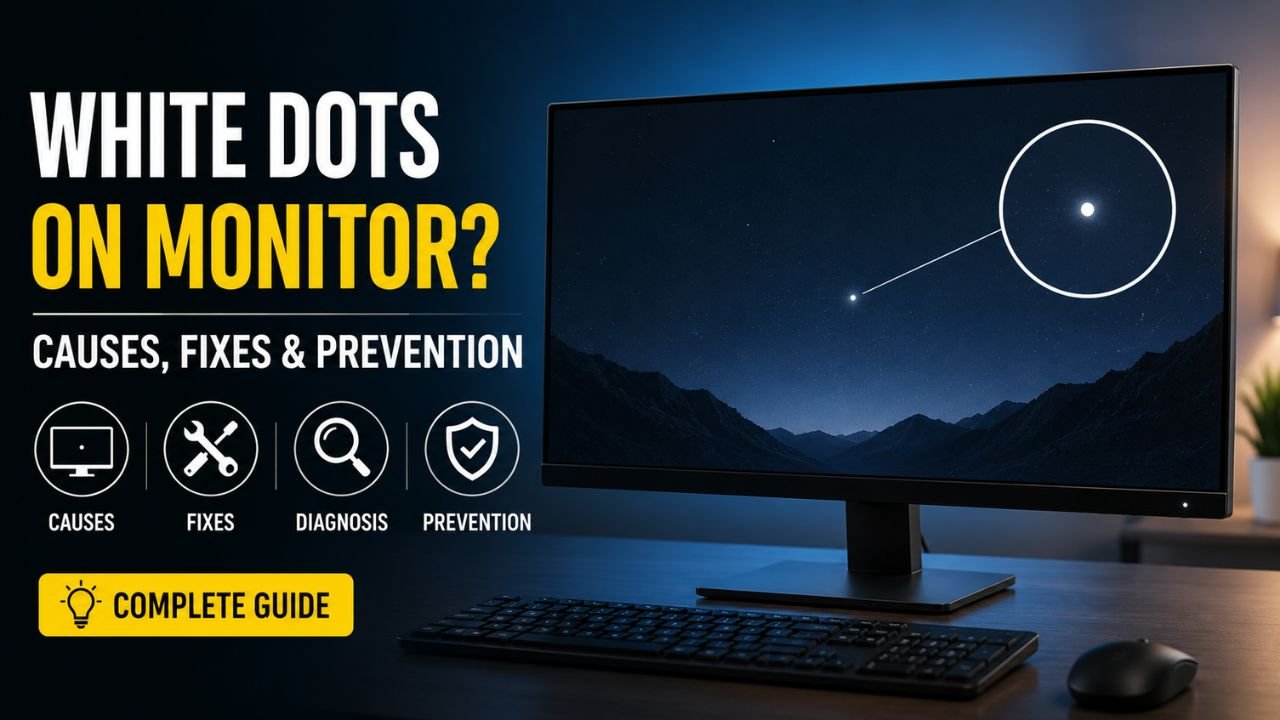
White dots on monitor screens are bright areas or individual points that appear lighter than the surrounding display. Their size and shape can provide important clues about the underlying problem.
A very small, single bright point may be a stuck pixel. A larger circular or cloudy area can indicate damage beneath the display surface, such as a displaced LED diffuser or damaged LCD layers. Several small bright spots may also indicate a backlight-related problem.
The first step is to determine whether you are dealing with a pixel problem or a physical display problem.
For example, if the mark is exactly one pixel wide and remains in the same location, a stuck pixel is possible. If the spot is several millimeters wide and looks like a tiny glowing circle, the problem may involve the panel’s backlight or diffuser.
Also read more: Green Dots on Laptop Screen | Why Is My Computer Screen Red Tinted? | Artifacting on Screen | Pressure Marks on Laptop Screen
Common Causes of White Dots on Monitor Displays
There are several reasons white dots on monitor screens can develop. Identifying the cause is important because the appropriate solution depends on the type of damage.
1. Stuck or Defective Pixels
A monitor consists of thousands or millions of individual pixels. Each pixel uses subpixels to produce different colors. When a pixel becomes stuck in a particular state, it may appear as a bright white, red, green, blue, or another colored point.
A stuck pixel may sometimes respond to software-based pixel-refreshing methods, although there is no guarantee that these methods will work.
If only one tiny point is affected, compare it against different solid-color backgrounds. This can help determine whether the issue is pixel-related. Stuck pixels are one of the most common explanations for White Dots on Monitor displays.
2. Damaged LCD Layers
An lcd white spot can occur when one or more layers inside an LCD panel are damaged. The visible mark may be larger than a normal pixel and may have a circular or cloudy appearance.
Physical pressure is a common contributor. Placing a heavy object against a laptop screen, pressing the display during cleaning, or carrying a device without adequate protection can damage delicate internal layers.
LCD panel damage generally cannot be corrected through software. Physical panel damage is another possible explanation for White Dots on Monitor screens.
3. LED Backlight or Diffuser Problems
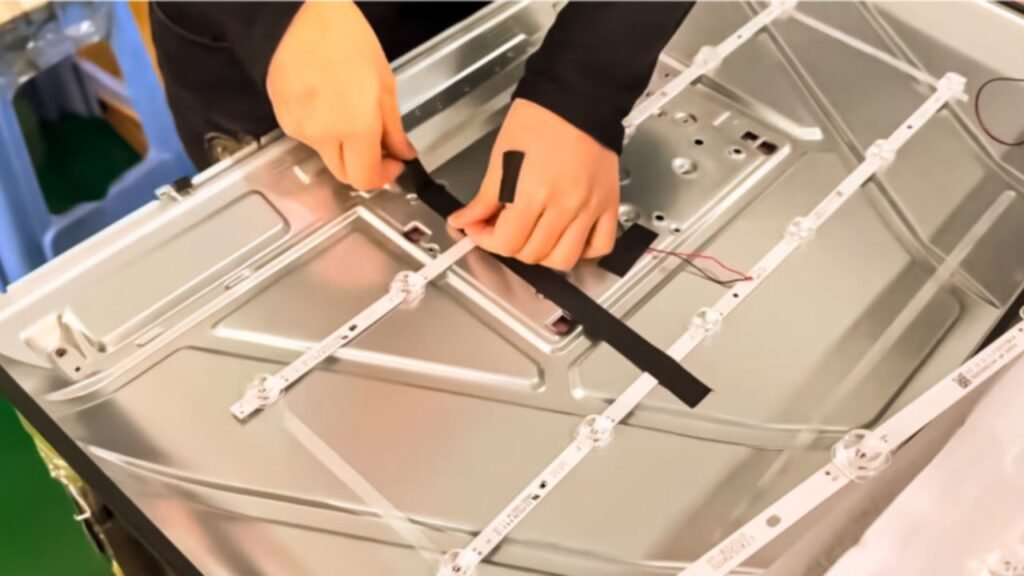
Modern monitors use LEDs to illuminate the display. Small diffuser components help distribute that light evenly across the panel.
If a diffuser becomes displaced, damaged, or detached from its original position, light may become concentrated in one area. This can create a bright circular mark that looks like a small flashlight shining through the screen.
This type of display white spot is a hardware issue rather than a Windows, graphics driver, or application problem. Backlight problems can make White Dots on Monitor appear larger and more circular.
4. Physical Pressure or Impact
A monitor can develop bright marks after physical pressure or impact. Even if the external glass or plastic surface looks completely normal, internal components can be affected.
Common examples include:
- Pressing the screen while cleaning it
- Dropping a laptop
- Closing a laptop with an object between the keyboard and display
- Carrying a monitor incorrectly
- Placing heavy objects against a display
- Accidentally hitting the panel
If the mark appeared immediately after physical contact, hardware damage should be considered. Pressure-related damage is a common reason for White Dots on Monitor to appear suddenly.
5. Heat and Poor Ventilation
Excessive heat can contribute to display problems over time. Monitors and laptops should have adequate ventilation, and devices should not be exposed to unnecessary heat for prolonged periods. Long-term heat exposure can also contribute to some White Dots on Monitor problems.
Heat is not always the direct cause of a bright spot, but it can accelerate deterioration of display components and other internal hardware.
6. Manufacturing Defects
Some panels may leave the factory with pixel defects or uneven backlighting. A new display showing a bright point shortly after purchase should be checked against the manufacturer’s pixel-defect policy and warranty terms. Manufacturing defects can explain why White Dots on Monitor appear on a relatively new display.
White Dots on Screen vs White Spots: What’s the Difference?
The terms are often used interchangeably, but the physical appearance can be different. Knowing the difference between pixels and physical spots makes White Dots on Monitor easier to diagnose.
White dots on screen usually refers to tiny, clearly defined points. These are more likely to be individual pixel-related issues.
A larger circular mark is more likely to be a backlight, diffuser, or panel issue.
If you notice white marks on monitor surfaces, don’t immediately assume they are dead pixels. Their size, shape, brightness, and behavior on different backgrounds can help narrow down the cause.
A white patch on screen that covers several pixels is generally more concerning than a single bright pixel.
How to Test White Dots on Monitor Displays
Before trying a repair, perform a few simple diagnostic tests. These can help you understand whether the problem is software-related, pixel-related, or physical. Testing is an important part of diagnosing White Dots on Monitor correctly.
Test 1: Use a Black Background
Open a completely black image or video.
If you notice black screen white dots, pay attention to their shape and size. A bright circular spot that is clearly visible against black may indicate a backlight or diffuser problem.
A single tiny point is more likely to be a pixel issue. A black background can make White Dots on Monitor particularly easy to see.
Test 2: Use Solid Colors
Display full-screen red, green, blue, black, and white backgrounds.
Look carefully at the affected area on each color.
If one tiny pixel remains bright or displays an unusual color, it may be stuck. If a larger area remains illuminated, the problem may be related to the panel or backlight. Solid-color backgrounds are useful for identifying different types of White Dots on Monitor.
Test 3: Take a Screenshot
On a computer, take a screenshot while the affected area is visible.
Open that screenshot on another device.
If the spot is absent from the screenshot, the problem is probably with the physical display rather than the graphics content being generated by the computer.
If the mark appears in the screenshot and moves with the content, investigate software, graphics, or application-related causes. Taking a screenshot can help determine whether White Dots on Monitor are hardware-related.
Test 4: Connect an External Display
Laptop users can connect an external monitor or TV.
If the external display looks normal while the laptop panel still shows the mark, the built-in screen is likely the source of the problem.
This is particularly useful when diagnosing a white spot on hp laptop screen or another laptop display. Comparing displays can make diagnosing White Dots on Monitor much easier.
Test 5: Check Before Windows Loads
Restart the computer and look at the manufacturer’s logo or BIOS/UEFI screen.
If the spot is visible before Windows loads, it is less likely to be caused by an operating-system setting or application. If White Dots on Monitor remain visible before Windows starts, hardware becomes more likely.
How to Fix White Dots on Monitor Displays
The correct solution depends on what caused the problem. There is no universal fix for every type of bright spot.
1. Restart the Monitor or Computer
A restart is a simple first step.
Turn the monitor off, disconnect it from power for a short period, reconnect it, and check the display again.
For a laptop, restart the system and check whether the mark remains.
A restart is unlikely to repair physical panel damage, but it can eliminate temporary display glitches.
2. Check the Display Cable
Loose or damaged display cables can sometimes cause unusual visual artifacts.
For desktop monitors, check the HDMI, DisplayPort, USB-C, or other display connection. Make sure the cable is firmly connected.
If possible, test with another compatible cable.
However, a fixed bright circular spot in exactly the same location is usually less likely to be caused by a loose cable.
3. Try Pixel-Refreshing Tools for Pixel Problems
If the problem is a single stuck pixel, some pixel-refreshing tools rapidly change colors in the affected area.
These tools may help in certain cases, but they cannot repair physical LCD damage or a damaged backlight diffuser.
Do not repeatedly apply pressure to the display while using these tools.
4. Clean the Screen Correctly
Sometimes what appears to be a white spot on screen is actually residue, dust, dried cleaning liquid, or a surface mark.
Turn off the display and gently clean it using a suitable microfiber cloth.
Never spray liquid directly onto the panel, and avoid excessive pressure.
If the mark remains in exactly the same position after cleaning, internal display damage becomes more likely.
5. Do Not Press or Massage the Panel
You may find advice online suggesting that gently rubbing a bright spot can correct it.
This approach is risky.
Applying pressure can damage the LCD layers further and potentially create additional display problems. If you have already identified a physical panel or diffuser issue, professional inspection is safer than pressing the screen.
6. Professional Display Repair
If the problem is caused by a damaged diffuser, LED component, LCD panel, or other internal part, professional repair may be necessary.
A technician can inspect the display and determine whether the affected component can be repaired or replaced.
For some monitors, replacing an individual internal component may be possible. For others, replacing the complete panel is more practical.
White Spot on HP Laptop Screen: What Does It Mean?

A white spot on hp laptop screen can have several possible causes. It may result from pressure, a stuck pixel, LCD damage, or a backlight diffuser issue.
If the white spot hp users notice is small and pixel-sized, perform the solid-color test first. If it is large, circular, and especially bright against a black background, physical display damage is more likely.
Check whether the laptop is still under warranty before opening the display assembly. Opening the panel yourself can potentially affect warranty coverage and may cause additional damage.
The same diagnostic process can be applied to other laptop brands.
White Spot on LCD Screen: Can It Be Fixed?
A white spot on lcd screen fix depends entirely on the cause.
A stuck pixel may sometimes improve with pixel-refreshing techniques. Surface residue can be cleaned. A loose cable can sometimes be replaced.
However, if the spot is caused by a damaged LCD panel or diffuser, software cannot repair it.
If the display otherwise works normally and the spot is small, some users may choose to continue using the monitor. If the spot is large, increasing, or affecting important work, professional repair or panel replacement may be more appropriate.
White Spots on TVs
The same technology used in monitors and laptops is also found in many televisions.
A bright spot on led tv screens can sometimes occur when an LED diffuser lens becomes displaced or detached. The result may look like a small bright circle that is especially noticeable on dark scenes.
If a Samsung tv with white spots develops several circular bright areas, backlight or diffuser problems may be worth investigating.
Similarly, if your tv has white spots, check whether the spots appear on every input and every picture source. If they remain in exactly the same physical locations, the display hardware is more likely to be responsible.
White specks on tv screens can also have different causes, so their size and appearance matter.
White Spot on Screen Android Devices
A white spot on screen android phones can be caused by pressure, impact, defective pixels, moisture-related damage, or internal display-layer problems.
Because smartphone displays are compact and delicate, pressing or rubbing the affected area is not recommended.
If the spot appeared after the phone was dropped, squeezed, exposed to moisture, or subjected to unusual heat, professional inspection is advisable.
Can White Dots Spread Across a Monitor?
One common concern is whether white dots on monitor displays will eventually spread.
There is no single answer because it depends on the underlying cause.
A single defective pixel may remain isolated for years. Physical panel damage may remain stable, but additional damage can occur if the screen experiences further pressure or impact.
Backlight-related problems can also change over time as additional components deteriorate.
If you notice the number or size of spots increasing, document the change with photographs and consider having the display inspected.
When Should You Replace the Monitor?
Replacing the entire monitor is not always necessary.
Consider professional repair or replacement when:
- The bright area is large.
- Multiple spots have appeared.
- The screen has visible physical damage.
- The display is flickering.
- Lines or discoloration are appearing.
- The problem is interfering with work or gaming.
- Repair costs are close to the price of a new monitor.
- The display is old and has other problems.
For a relatively new monitor, check the warranty before paying for repair.
For an older monitor with extensive panel damage, replacement may provide better value.
How to Prevent White Dots and Screen Damage
Prevention is easier than repairing a damaged panel. Preventing physical damage can reduce the risk of developing White Dots on Monitor in the future.
Follow these practices:
- Avoid Pressure: Never press directly against an LCD or LED panel.
- Clean Gently: Use a clean microfiber cloth and minimal pressure.
- Protect Laptops: Do not place objects between the keyboard and screen when closing a laptop.
- Improve Ventilation: Keep computers and monitors away from unnecessary heat.
- Transport Carefully: Use suitable protection when moving a laptop or monitor.
- Avoid DIY Panel Opening: Modern displays contain delicate components. Opening the panel without the necessary experience can create more damage.
- Keep Liquids Away: Moisture can damage display electronics and may lead to additional visual problems.
These precautions can help protect your display from problems that may lead to White Dots on Monitor.
Should You Repair or Ignore a White Spot?
The decision depends on the severity of the problem. Not every case of White Dots on Monitor requires immediate repair or replacement.
If you have one tiny pixel that does not interfere with normal use, continuing to use the display may be reasonable.
If you have several bright circles, a growing white patch on screen, or visible panel damage, professional inspection is more appropriate.
For an expensive monitor or television, repair may make financial sense. For an older budget monitor, replacement could be more economical.
The most important point is to identify the underlying problem before purchasing a replacement panel. The right decision depends on the severity and cause of the White Dots on Monitor.
Final Thoughts
White dots on monitor screens can be caused by anything from a single stuck pixel to serious panel or backlight damage. The appearance of the mark is one of the most useful clues: tiny points are more likely to involve pixels, while larger circular bright areas can indicate diffuser or backlight problems. Understanding the cause of White Dots on Monitor is more important than simply trying random fixes.
Before attempting a repair, test the display using black and solid-color backgrounds, take a screenshot, and if you are using a laptop, connect an external display. These steps can help determine whether the issue is coming from the physical panel or the computer’s software and graphics system.
Avoid pressing, rubbing, or opening the display unless you have the appropriate technical expertise. If the problem is caused by internal hardware damage, professional inspection can help determine whether repair or replacement is the better option.
By diagnosing the problem carefully, you can avoid unnecessary replacement costs and choose the safest solution for your particular display.
Also read: Browser Use AI | Context7 AI | What is Manus AI? | Perplexity Comet | EU AI Act 2026
Frequently Asked Questions
These frequently asked questions cover some of the most common concerns about White Dots on Monitor.
Q1: What causes white dots on monitor screens?
The most common causes include stuck pixels, physical pressure, LCD panel damage, damaged diffuser components, LED backlight problems, overheating, and manufacturing defects.
Q2: Can white dots on monitor displays be fixed?
Sometimes. A stuck pixel may respond to pixel-refreshing methods, while surface marks can be cleaned. Physical panel and diffuser damage generally requires professional repair or replacement.
Q3: Are white dots the same as dead pixels?
Not necessarily. A dead pixel is usually black or permanently inactive, while a stuck pixel can remain bright or display a fixed color. Larger bright spots can be caused by the backlight or diffuser instead.
Q4: Why do I have white marks on monitor displays?
White marks can result from surface residue, pixel defects, pressure damage, LCD-layer problems, or backlight-related issues. Testing the screen with solid colors can help identify the likely cause.
Q5: Why is my laptop screen showing a white spot?
Pressure, impact, defective pixels, LCD damage, or a backlight diffuser problem can cause a bright spot. A white spot on hp laptop screen, for example, should first be checked using black and solid-color backgrounds.
Q6: Can pressing a white spot make it disappear?
Pressing the display is not recommended. It can damage the LCD layers or create additional marks. If the problem persists, professional inspection is safer.
Q7: Why does my TV have white spots?
If your tv has white spots, the cause may include damaged LED diffuser lenses, backlight problems, panel damage, or pixel defects. Multiple circular bright spots often deserve professional inspection.
Q8: Should I replace my monitor because of a white spot?
Not necessarily. A small isolated pixel may not require replacement. However, multiple spots, large bright patches, spreading damage, or other display problems may justify repair or replacement.




2 Comments