
 By
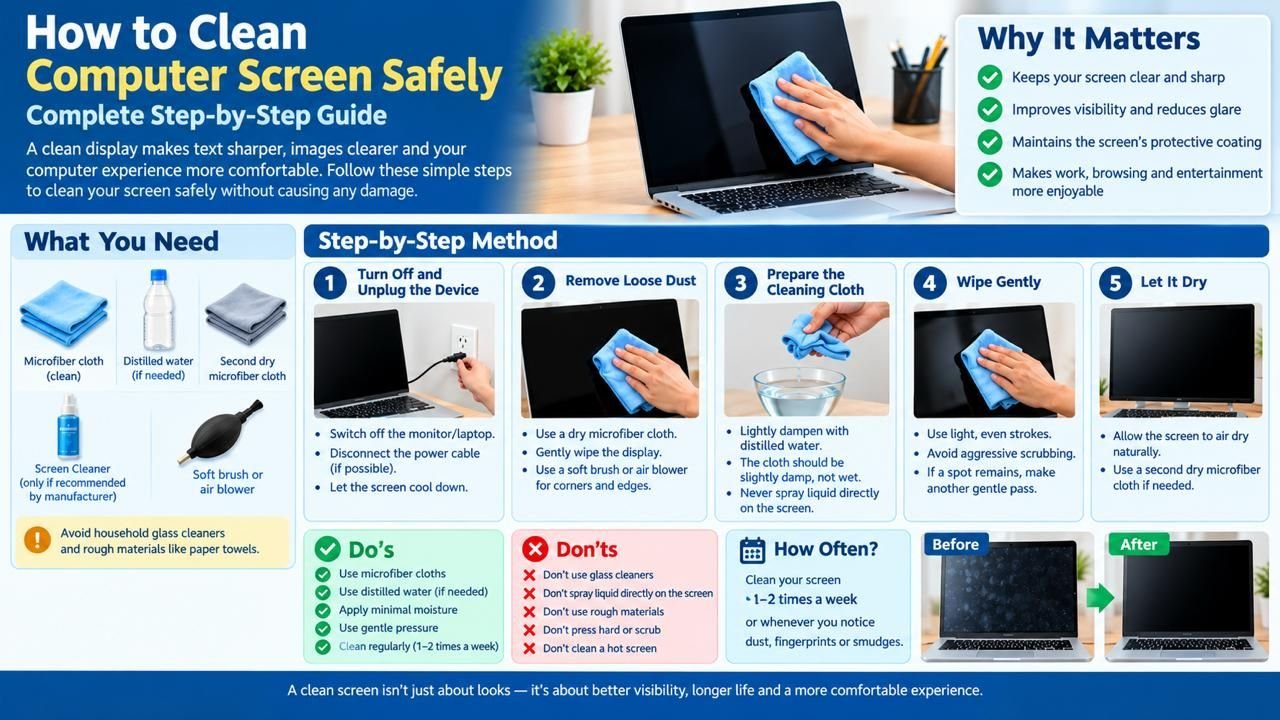
By A clean display makes text sharper, images clearer, and long hours of computer use more comfortable. Dust, fingerprints, smudges, food particles, and oily marks can quickly build up on a laptop or desktop monitor. However, using the wrong cleaner or applying too much pressure can damage the screen’s protective coating.
If you are searching for how to clean computer screen safely, the key is to use the right materials, minimal moisture, and gentle pressure. Modern LCD, LED, OLED, and similar displays can be sensitive to harsh chemicals and excessive liquid. Fortunately, routine cleaning does not require expensive equipment.
This guide explains how to clean computer screen step by step, what products to use, what to avoid, how often to clean your display, and what to do about stubborn marks.
Read more about: Technology | Half Black Screen | Yellow Tint on Laptop Screen | Why Is My Computer Screen Red Tinted? | Dell Display Problem
Why Keeping Your Computer Screen Clean Matters
A monitor collects more than visible dust. Fingerprints can leave oily residues, while airborne particles can settle on the panel and frame. If you regularly touch the display, the amount of dirt can increase considerably.
Learning how to clean computer screen correctly helps maintain a clear viewing surface without unnecessarily exposing the panel to moisture or chemicals.
A clean screen can also make everyday tasks more pleasant. Whether you are working with documents, browsing websites, editing photographs, watching videos, or playing games, removing fingerprints and dust improves visibility.
The important point is that screen cleaning is different from cleaning ordinary glass. A monitor may have an anti-glare, anti-reflective, or other surface treatment that can be damaged by inappropriate products.
For anyone learning How to Clean Computer Screen Safely, understanding the type of display and its surface coating is an important first step.
What You Need Before Cleaning
Before you begin how to clean computer screen, gather a few basic supplies:
- A clean microfiber cloth
- Distilled water, if moisture is needed
- A second dry microfiber cloth
- A small amount of manufacturer-approved screen cleaner, if recommended
- A soft brush or air blower for loose dust
Microfiber is generally preferred because it is soft and designed to pick up dust and oils without the abrasiveness associated with rough paper products.
Do not assume that a household glass cleaner is suitable for your monitor. Many conventional cleaning products contain ingredients that manufacturers may advise against using on display panels.
Having the correct materials ready makes How to Clean Computer Screen Safely a simple maintenance task rather than a complicated cleaning process.
How to Clean Computer Screen Safely: Step-by-Step Method
The safest approach is simple: power down the device, remove loose dust, lightly dampen the cloth when necessary, wipe gently, and allow the screen to dry.
Step 1: Turn Off and Unplug the Device
Before how to clean computer screen, switch off the monitor or laptop. If practical, disconnect the power cable as well.
A dark screen also makes dust, fingerprints, and smudges easier to see.
Allowing the display to cool before cleaning is another sensible precaution. Do not clean a hot screen immediately after extended use.
Turning off the device is an essential part of How to Clean Computer Screen Safely because it makes the cleaning process easier and helps prevent unnecessary electrical concerns.
Step 2: Remove Loose Dust
Start with a dry microfiber cloth. Gently wipe the display to remove loose dust.
Do not press hard. Dust particles can potentially act like tiny abrasives if they are dragged forcefully across a surface.
For corners and edges, you can use a soft brush or suitable air blower. Avoid using excessive compressed air directly against delicate components unless the device manufacturer specifically recommends that method.
Removing loose particles before using moisture is another important part of How to Clean Computer Screen Safely.
Step 3: Prepare the Cleaning Cloth
When dry wiping is not enough, lightly dampen a microfiber cloth with distilled water.
The cloth should be slightly damp, not wet.
One of the most important principles in how to clean computer screen is controlling moisture. Never pour or spray liquid directly onto the display.
Excess liquid can run toward the edges of the panel and potentially enter openings.
Keeping moisture under control is central to How to Clean Computer Screen Safely, especially when cleaning around display edges.
Step 4: Wipe Gently
Use light, even strokes to remove fingerprints and marks.
Avoid aggressive scrubbing. If a particular spot does not disappear immediately, make another gentle pass rather than increasing pressure.
For people researching how to clean pc screen, this same general method applies to most desktop monitors, although the manufacturer’s instructions should always take priority.
Gentle movements are one of the simplest principles to remember when following How to Clean Computer Screen Safely.
Step 5: Dry the Display
After wiping, use a clean, dry microfiber cloth to remove remaining moisture.
Inspect the display from different angles to make sure there are no streaks.
If the screen is still slightly damp, give it time to dry completely before turning the device back on.
Allowing the screen to dry properly completes the basic How to Clean Computer Screen Safely process.
What to Clean Computer Screen With
One of the most common questions is what to clean computer screen with. In most everyday situations, a clean microfiber cloth is the best starting point.
For light dust, you may not need liquid at all. A dry microfiber cloth can remove loose particles and many superficial marks.
For more persistent fingerprints, distilled water applied sparingly to the cloth can be useful, provided it is compatible with the manufacturer’s care instructions.
If you choose a commercial display cleaner, check its label and your device manufacturer’s recommendations first.
When deciding what can i use to clean my computer screen, avoid assuming that a product designed for windows, mirrors, kitchen surfaces, or televisions is automatically appropriate for a computer display.
Choosing appropriate cleaning materials is an important part of How to Clean Computer Screen Safely.
What Not to Use on a Computer Screen
Knowing what to avoid is just as important as knowing what to use.
Do not use:
- Paper towels
- Facial tissues
- Rough rags
- Abrasive sponges
- Household glass cleaner unless specifically approved
- Strong solvents
- Bleach-based cleaners
- Ammonia-based products unless explicitly recommended
- Excessive amounts of water
- Direct sprays onto the panel
These products or methods can leave fibers, create scratches, introduce excessive moisture, or affect surface coatings.
When learning how to properly clean computer screen, remember that gentleness matters more than the amount of cleaning product you use.
Avoiding unsuitable products is just as important as choosing the right materials when learning How to Clean Computer Screen Safely.
How to Clean a Laptop Screen
Laptop screens require the same basic caution as desktop monitors, but portability introduces additional considerations.
Start by shutting down the laptop completely and disconnecting its charger. If the model has a removable battery and the manufacturer recommends removing it for maintenance, follow those instructions.
Then begin cleaning a computer screen with a dry microfiber cloth.
Avoid putting pressure on the center of the laptop display. Thin panels can flex more easily than desktop monitors.
If moisture is necessary, apply a small amount to the cloth rather than the screen. Keep liquid away from the keyboard, webcam, ports, and display edges.
These precautions are useful when applying How to Clean Computer Screen Safely techniques to a laptop.
How to Clean a Desktop Monitor
For a desktop monitor, turn off the display and disconnect its power cable.
If you are wondering how to clean pc screen, begin with the panel itself and then clean the surrounding bezel and stand separately.
The bezel and stand may tolerate cleaning methods that are not suitable for the display surface, so avoid allowing cleaning liquid to migrate onto the panel.
Use a microfiber cloth for the screen and another cloth for the exterior if necessary.
The same basic principles of How to Clean Computer Screen Safely can be applied to most desktop displays while following manufacturer instructions.
How to Properly Clean Computer Screen Without Streaks
Streaks usually happen because too much liquid or an unsuitable cloth is being used.
If you want to understand how to properly clean computer screen without streaking, use a small amount of moisture and wipe in controlled movements.
Avoid repeatedly going over the same area with a wet cloth.
After the initial pass, use a dry microfiber cloth to buff away remaining moisture.
Another useful technique is to inspect the screen under different lighting conditions. A display can look clean from one angle but still show streaks when light reflects across it.
Using minimal moisture and a clean cloth helps make How to Clean Computer Screen Safely more effective without leaving unnecessary streaks.
How to Remove Fingerprints
Fingerprints are usually made up of oils from the skin, which means dry dusting alone may not remove them completely.
For how to clean a computer screen with fingerprints, start by gently wiping the area with a clean microfiber cloth.
If the mark remains, lightly dampen part of the cloth with distilled water and make another gentle pass.
Do not press harder simply because the fingerprint is stubborn.
If a mark still does not disappear, check the monitor manufacturer’s cleaning instructions before trying a stronger product.
For oily fingerprints, How to Clean Computer Screen Safely means using patience and gentle cleaning rather than excessive pressure.
How to Remove Stubborn Marks
Stubborn marks require patience.
First, identify what caused the mark. Dust, oil, food residue, adhesive, and dried liquid may require different approaches.
Never scrape a mark from the screen with a fingernail, card, blade, or other hard object.
Instead, lightly dampen a microfiber cloth and gently work across the affected area.
For manufacturer-approved screen cleaners, follow the product’s instructions precisely.
If you are searching for how do you clean a computer screen because of a particularly difficult stain, avoid experimenting with household chemicals. The risk of damaging the display surface may outweigh the benefit of removing a single mark.
When dealing with stubborn marks, How to Clean Computer Screen Safely requires avoiding abrasive tools and unapproved chemicals.
How Often Should You Clean Your Computer Screen?
There is no universal schedule because cleaning frequency depends on the environment and how the device is used.
A home office with limited dust may only require occasional cleaning. A busy workplace, workshop, or room with pets may require more frequent dust removal.
A practical routine is:
- Dust lightly whenever visible particles accumulate.
- Remove fingerprints when they become noticeable.
- Perform a more thorough wipe when smudges affect visibility.
- Clean the bezel and stand periodically.
- Follow the manufacturer’s maintenance instructions.
Regular light cleaning is generally preferable to waiting until the screen becomes heavily soiled.
Following a regular routine makes How to Clean Computer Screen Safely easier and reduces the need for aggressive cleaning.
Common Mistakes to Avoid
Many display-cleaning problems happen because people use methods intended for ordinary household surfaces.
Spraying Liquid Directly Onto the Screen
This is one of the biggest mistakes. Liquid can travel toward the edges or openings of the device.
Always put moisture on the cloth when the manufacturer’s instructions permit damp cleaning.
Avoiding direct sprays is an important rule when following How to Clean Computer Screen Safely.
Using Too Much Pressure
A screen is not a countertop. You do not need to scrub it.
Gentle wiping is usually enough for dust and fingerprints.
Using light pressure is a fundamental part of How to Clean Computer Screen Safely.
Cleaning With a Dirty Cloth
A cloth containing trapped particles can spread dirt and potentially scratch a surface.
Use a clean microfiber cloth for the display.
A clean dedicated cloth supports a safer How to Clean Computer Screen Safely routine.
Using the Same Cloth Everywhere
The cloth used for a keyboard, desk, or dusty stand may contain particles that you do not want on the screen.
Keep a dedicated microfiber cloth for display cleaning.
Cleaning While the Display Is Hot
Give the screen time to cool after heavy use before wiping it.
How to Clean Computer Screen for Better Daily Maintenance
Once you know how to clean computer screen, prevention can make maintenance easier.
Try to avoid touching the panel unnecessarily. Keep food and drinks away from the computer. Dust the surrounding desk regularly so particles do not continuously settle on the display.
If you have pets, regular room cleaning can also reduce airborne dust and hair.
Positioning the monitor away from direct airflow from fans or vents may help reduce the amount of dust settling on the surface.
These simple habits can reduce the need for intensive cleaning.
Following How to Clean Computer Screen Safely regularly can make everyday display maintenance easier and more manageable.
Cleaning a Computer Screen: Laptop vs. Desktop
Although the basic process is similar, laptop and desktop displays have different practical considerations.
| Feature | Laptop Screen | Desktop Monitor |
| Power | Shut down and unplug | Turn off and unplug |
| Cleaning cloth | Microfiber | Microfiber |
| Moisture | Minimal | Minimal |
| Pressure | Very light | Very light |
| Liquid application | Cloth only | Cloth only |
| Manufacturer guidance | Important | Important |
The exact cleaning recommendations can vary by manufacturer and display technology, so consult your device documentation when available.
The table provides a quick reference for applying How to Clean Computer Screen Safely to different types of computer displays.
Can You Use Water to Clean a Computer Screen?
Water may be suitable for some displays when used sparingly, but manufacturer instructions should come first.
If water is permitted, distilled water applied lightly to a microfiber cloth is a common approach.
Never soak the cloth and never allow liquid to pool on the screen.
If you are unsure what to clean computer screen with, checking the manufacturer’s support documentation is safer than choosing a household cleaning chemical at random.
Using water correctly is another consideration when learning How to Clean Computer Screen Safely.
When Professional Cleaning May Help
Most surface dust and fingerprints can be handled at home. However, professional technical assistance may be useful when the issue goes beyond ordinary dirt.
For example, if a display has liquid inside it, unusual stains beneath the panel surface, physical damage, persistent discoloration, or other hardware symptoms, cleaning the exterior may not solve the problem.
A qualified computer repair or technical service provider can inspect the device and determine whether the problem is surface contamination or a hardware issue.
Professional services can also be useful for businesses managing multiple computers where consistent maintenance is required.
Quick Checklist: How to Clean Computer Screen
Before you start, remember these points:
- Turn off the computer or monitor.
- Disconnect power when practical.
- Let the display cool.
- Use a clean microfiber cloth.
- Remove loose dust first.
- Use minimal moisture if permitted.
- Never spray liquid directly onto the screen.
- Avoid harsh household chemicals.
- Never scrub aggressively.
- Dry the screen with a clean microfiber cloth.
- Check the manufacturer’s cleaning instructions.
- Keep the display clean through regular light maintenance.
Following this checklist makes how to clean computer screen a straightforward maintenance task rather than a risky cleaning experiment.
Keeping these points in mind makes How to Clean Computer Screen Safely straightforward for regular laptop and desktop maintenance.
Read more about: OpenAI News Today | AI Gemini Photo | Getting Files Ready for Installation Stuck
Final Thoughts
Knowing how to clean computer screen is a useful part of basic computer maintenance. The process does not need expensive equipment or complicated techniques. A clean microfiber cloth, minimal moisture when appropriate, gentle movements, and manufacturer-approved products are usually the most important considerations.
Whether you are maintaining a laptop used for work or a desktop monitor used for gaming and entertainment, careful cleaning can help keep the display clear and comfortable to use.
When in doubt about how to clean a computer screen, always prioritize the manufacturer’s instructions. Different displays can have different coatings and care requirements, so the safest method is the one compatible with your specific device.
Regular dust removal, avoiding unnecessary touching, and keeping liquids away from the panel can make clean a computer screen a simple part of your routine rather than an occasional difficult task.
The main principles of How to Clean Computer Screen Safely are simple: use suitable materials, control moisture, apply gentle pressure, and follow the manufacturer’s instructions.
Frequently Asked Questions
Q1. How to clean computer screen without damaging it?
Turn off the device, remove loose dust with a microfiber cloth, and use minimal moisture only when appropriate for the display. Never spray liquid directly onto the panel or apply excessive pressure.
Q2. How to clean pc screen safely?
For how to clean pc screen, start with a dry microfiber cloth. If fingerprints remain and the manufacturer permits damp cleaning, lightly moisten the cloth with an appropriate cleaning solution or distilled water and wipe gently.
Q3. What can I use to clean my computer screen?
A clean microfiber cloth is the safest starting point for many displays. For stubborn marks, use only a screen-cleaning product recommended or permitted by the display manufacturer.
Q4. How do you clean a computer screen with fingerprints?
For how do you clean a computer screen with fingerprints, first try a dry microfiber cloth. If the oily marks remain, lightly dampen the cloth with an approved solution and gently wipe the affected area.
Q5. How to properly clean computer screen without streaks?
The key to how to properly clean computer screen without streaks is to use very little moisture, avoid spraying the panel directly, and finish with a clean, dry microfiber cloth.
Q6. What should you avoid when cleaning a computer screen?
Avoid abrasive materials, excessive pressure, direct spraying, harsh chemicals, and excessive moisture. These methods can potentially damage the panel or its surface coating.
Q7. How often should I clean my computer screen?
Clean it whenever visible dust, fingerprints, or smudges accumulate. Light routine cleaning is generally preferable to aggressive deep cleaning.
Q8. Can I use household glass cleaner on my monitor?
Do not assume glass cleaner is safe for a computer display. Some monitors have protective coatings that may be affected by certain chemicals. Check the manufacturer’s cleaning instructions before using any product.
Q9. What is the safest way to clean a computer screen?
How to Clean Computer Screen Safely involves turning off the device, removing loose dust with a clean microfiber cloth, using minimal moisture when appropriate, and avoiding direct sprays or harsh cleaning chemicals.