
 By
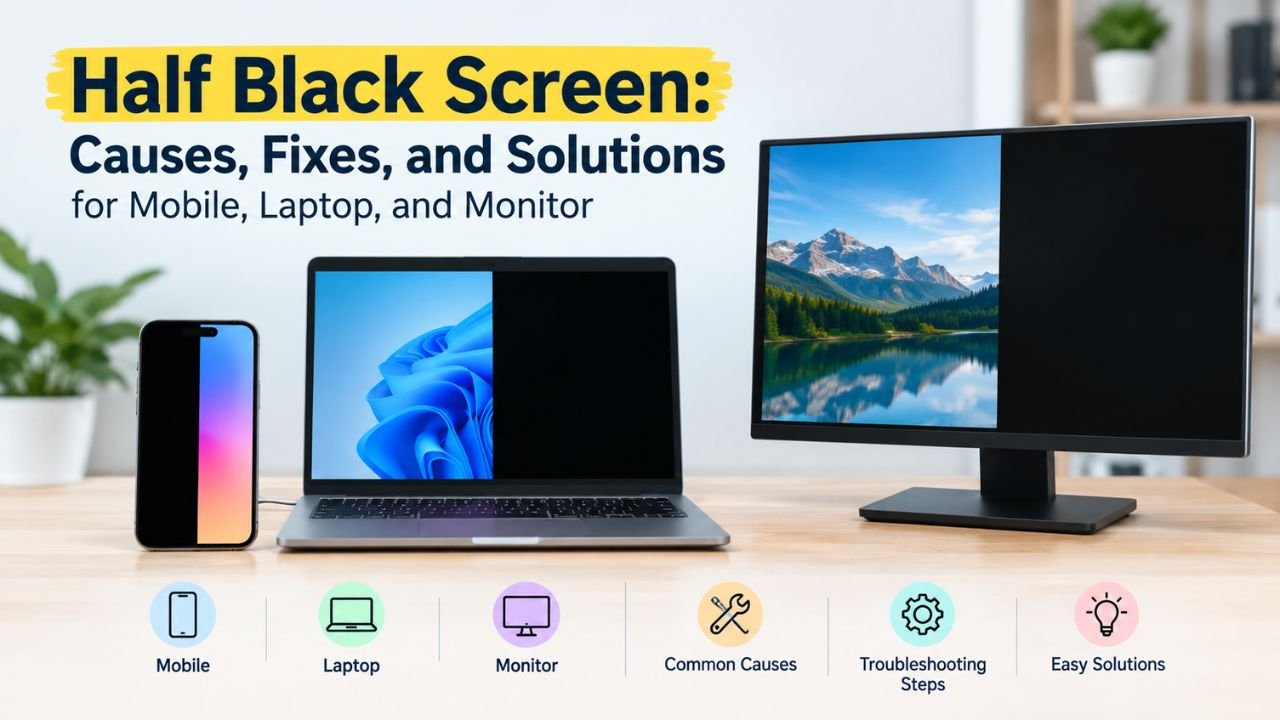
By A Half Black Screen can be a frustrating problem, especially when you suddenly notice that one side of your phone, laptop, or monitor has stopped displaying properly. The affected area may become completely black, flicker, remain unresponsive, or prevent you from seeing important content.
This issue can happen on many devices, including Android phones, iPhones, Acer laptops, Asus laptops, desktop computers, and external monitors. In some situations, a Half Black Screen is caused by a temporary software glitch that can be fixed with a simple restart. However, a damaged display panel, faulty cable, graphics driver issue, or internal hardware failure can also cause the problem.
Understanding the actual reason behind a Half Black Screen is important before deciding whether you need to change settings, update software, or seek professional repair.
This complete guide explains the most common causes, troubleshooting methods, and solutions for display problems across different devices. Whether you are experiencing a black area on your mobile phone or half of your computer monitor has stopped working, this article can help you identify the possible cause.
Quick Answer: Why Is Half of My Screen Black?
A Half Black Screen can happen for several reasons. The most common causes include:
- Physical damage to the screen
- Loose or damaged display cables
- Graphics driver problems
- Software glitches
- Incorrect screen resolution
- Water or moisture damage
- LCD or OLED panel failure
- Touchscreen digitizer problems
- Application-specific display issues
The best solution depends on when and where the problem appears. A Half Black Screen that appears after a drop is more likely to indicate hardware damage, while a problem that disappears after restarting may be related to software.
For example, if the black area appears across your entire device, including the startup screen, the issue may be related to hardware. If the problem only happens while using one application, software settings or application compatibility may be responsible.
Also read: White Dots on Monitor | Getting Files Ready for Installation Stuck | Dell Display Problem | Why Is My Computer Screen Red Tinted?
What Does a Half Black Screen Mean?
A Half Black Screen means that part of the display is not showing images correctly. The affected portion may be completely black, frozen, flickering, distorted, or unresponsive.
Different users may experience different symptoms, such as:
- The left half of the screen becoming black
- The right side of the display disappearing
- The bottom half becoming dark
- A black strip appearing on one side
- Half of a mobile screen becoming unresponsive
- Only part of applications being visible
- The screen working normally before suddenly turning black
The symptoms can help identify the cause of a Half Black Screen.
For example, a permanent black area that stays in exactly the same position may indicate physical screen damage. On the other hand, a problem that disappears after restarting the device may be caused by temporary software or graphics issues.
If the affected section changes when you move a laptop lid, reconnect a cable, or restart the device, pay attention to those changes. They can provide useful clues when diagnosing the Half Black Screen.
Common Causes of a Half Black Screen
1. Physical Damage to the Display
Physical damage is one of the most common causes of a Half Black Screen.
Dropping your phone, laptop, or monitor can damage internal display components. Sometimes, the outer glass may look normal even though the internal LCD or OLED panel has been damaged.
Common signs of physical display damage include:
- Black patches on the screen
- Colored lines
- Flickering
- Dark areas spreading over time
- Cracked glass
- Touchscreen problems
- Permanent black sections
If the problem started immediately after dropping your device, physical damage is likely to be responsible.
In this situation, restarting the device may not solve the Half Black Screen. A technician may need to inspect the screen and determine whether replacement is necessary.
Pressure can also damage a display. Placing heavy objects on a laptop or pressing firmly against a smartphone screen can affect the internal display layers.
2. Loose or Damaged Display Cables
Computers and monitors use cables to transfer video signals from one device to another.
A damaged HDMI cable, DisplayPort cable, VGA cable, or internal laptop display connector can create unusual screen problems. In some cases, a loose connection can make a Half Black Screen appear intermittently.
Check the following:
- HDMI connections
- DisplayPort cables
- External monitor cables
- Laptop display connectors
- Loose cable connections
- Visible cable damage
Turn off the device, disconnect the cable, and reconnect it securely.
If possible, test another cable. Sometimes, replacing a faulty cable can solve a display issue without requiring expensive repairs.
For laptops, an internal display cable may become loose or damaged near the hinge. If the Half Black Screen changes when you open or close the laptop, the cable should be inspected.
3. Graphics Driver Problems
Graphics drivers help your operating system communicate with your computer’s graphics hardware.
If a graphics driver becomes outdated, corrupted, or incompatible, it can cause:
- Black sections on the screen
- Flickering
- Display freezing
- Resolution problems
- Screen distortion
Windows users can update graphics drivers through Device Manager or the official graphics hardware manufacturer.
You can also restart the graphics driver using:
Windows + Ctrl + Shift + B
The screen may flicker briefly while Windows resets the graphics system.
If the display starts working normally afterward, the Half Black Screen may have been related to the graphics driver.
Keeping graphics drivers updated is especially important when display problems begin after a Windows update, graphics software installation, or application update.
4. Incorrect Display Resolution or Scaling
Incorrect resolution and scaling settings can sometimes create display problems that look similar to a Half Black Screen.
Check your computer’s:
- Screen resolution
- Display scaling
- Refresh rate
- Aspect ratio
- Graphics control panel settings
Always select the recommended resolution for your monitor.
For external displays, you should also check the monitor’s built-in settings menu. Incorrect settings may create black borders or cause the display to appear incorrectly positioned.
If the Half Black Screen only appears after changing resolution, scaling, or refresh-rate settings, returning to the recommended configuration may resolve the issue.
Half Display Problem in Mobile: Causes and Solutions
A Half Black Screen on mobile devices can make it difficult to use important applications, messages, and other features.
This issue can affect Android phones, iPhones, and tablets.
Common causes include:
- Accidental drops
- Water damage
- Internal screen damage
- Software problems
- Touchscreen failure
- Loose internal connectors
- Faulty applications
If a half display problem in mobile starts immediately after dropping the phone, internal display damage may be the main cause.
However, before assuming that the screen needs replacement, try some basic troubleshooting methods. A Half Black Screen caused by a temporary software problem may disappear after restarting or updating the device.
Restart Your Mobile Device
Restarting your phone can solve temporary software problems.
Turn your phone off and restart it normally.
If the display returns to normal after restarting, the issue may have been caused by a temporary system error.
If the Half Black Screen remains visible after every restart, further troubleshooting may be necessary.
A restart is one of the simplest troubleshooting steps because it does not require changing important settings or opening the device.
Update the Operating System
Software updates often contain important bug fixes.
Check whether your Android phone or iPhone has a pending software update.
Keeping your device updated can help resolve software-related display problems and improve overall performance.
If the Half Black Screen continues after updating, the issue may be related to hardware.
If the problem started immediately after an update, however, check whether other applications or users are reporting similar display issues. This can help determine whether the cause is software-related.
Android Half Screen Black: What Can You Do?
An android half screen black problem may happen because of physical damage or software issues.
If half of your Android phone display suddenly turns black, follow these basic steps.
Restart the Device: A normal restart can remove temporary system glitches.
Check for Software Updates: Install available Android updates.
Remove Recently Installed Apps: If the issue started after installing a specific application, uninstall the app and check whether the problem disappears.
Test Safe Mode: Safe Mode can help determine whether a third-party application is responsible.
Check for Physical Damage: Look for:
- Cracks
- Dark spots
- Pressure marks
- Signs of water exposure
If an android half screen black issue continues after restarting and updating the phone, the display hardware may require professional inspection.
A persistent Half Black Screen that remains visible during startup is more concerning than a temporary problem that appears only inside one application.
Android Half Screen Not Working
Sometimes the screen is visible, but part of the touchscreen does not respond.
This is commonly described as android half screen not working.
The problem may affect:
- The upper half
- The bottom half
- The left side
- The right side
If the screen displays images correctly but does not detect touch, the touchscreen digitizer may be damaged.
Possible causes include physical impact, moisture damage, internal connector problems, or software errors.
Try restarting the device and removing any damaged screen protector.
If the android half screen not working problem remains, professional repair may be required.
In some cases, the display image may work while touch functionality fails. This means the problem may involve the digitizer rather than the display panel itself, even though the symptoms can appear similar to a Half Black Screen.
Why Is Half My Screen Black iPhone?
Many users search for why half my screen black iphone after suddenly noticing that part of their iPhone display has become dark.
Several issues can cause this problem.
Physical Damage
Dropping an iPhone can damage the internal OLED or LCD display. If the Half Black Screen appeared immediately after an impact, physical damage should be considered one of the first possibilities.
Software Problems
Temporary iOS glitches may occasionally affect display behavior. Restarting the device and installing the latest available iOS update may help.
Water or Moisture Damage
Moisture can damage internal display components. Even when a phone continues to turn on normally, liquid exposure can affect the display or internal connectors.
Internal Display Connection Problems
A strong impact can affect internal display connections. If you are wondering why is half my screen black iphone, check whether the black area appears during startup.
If the problem remains visible even before applications fully load, hardware damage may be more likely.
A Half Black Screen that appears consistently across the lock screen, startup process, and applications should be checked carefully before assuming it is only a software issue.
Acer Half Screen Problem: How to Troubleshoot It
An acer half screen problem can occur because of graphics drivers, damaged display cables, incorrect settings, or screen hardware failure.
Start with these basic steps:
- Restart your Acer laptop
- Update Windows
- Update graphics drivers
- Check the display resolution
- Connect an external monitor
Testing an external monitor can help identify the actual problem.
If the External Monitor Works Normally: The internal laptop display or display cable may be damaged.
If Both Screens Show the Same Problem: The graphics driver, graphics hardware, or operating system may be responsible.
This troubleshooting method can help identify the cause of an acer half screen problem before arranging a repair.
If the external display looks normal while the laptop’s built-in display has a Half Black Screen, the internal panel or cable becomes more likely to be responsible.
Acer Monitor Half Screen Black
If you are experiencing an acer monitor half screen black issue, start by checking the monitor connection.
Follow these steps:
- Turn off the monitor.
- Disconnect the power cable.
- Disconnect the HDMI or DisplayPort cable.
- Wait for a few minutes.
- Reconnect all cables securely.
- Restart the computer.
Next, try using another cable.
You should also test the monitor with another computer if possible.
If the same black area appears on multiple devices, the monitor itself may have a hardware problem.
An acer monitor half screen black issue that appears even inside the monitor’s settings menu usually suggests an internal panel problem.
A Half Black Screen that remains visible regardless of the connected computer or cable is more likely to involve the monitor hardware itself.
Asus Half Screen Problem
An asus half screen problem can happen because of display hardware, graphics drivers, or internal cables.
Try the following:
- Restart the laptop
- Update Windows
- Update graphics drivers
- Check display resolution
- Connect an external monitor
- Reset the graphics driver
If the external monitor works normally while the laptop display remains partially black, the laptop screen or internal display cable may require repair.
An asus half screen problem that changes when you move the laptop screen may indicate a damaged cable near the hinge.
Avoid repeatedly opening and closing the laptop if the screen changes with movement.
If the display becomes black only at certain lid angles, this is a useful clue that the internal cable or connector may be involved in the Half Black Screen.
Bottom Half of Screen Not Working
The bottom half of the screen not working issue can happen on both smartphones and computers.
On a mobile device, the bottom section may stop responding to touch.
On a computer, the lower section may become black or fail to display applications correctly.
Possible causes include:
- Touchscreen damage
- Display panel failure
- Software problems
- Graphics driver issues
- Application conflicts
If the bottom half of the screen is not working, an issue happens on a smartphone, try rotating the device.
If the problem stays in the same physical location, hardware damage is more likely.
A Half Black Screen affecting the lower portion of a display can also result from a damaged panel, connector, or graphics problem, depending on the device.
Black Strip on Right Side of Monitor
A black strip on the right side of the monitor may be caused by incorrect display settings.
Check:
- Resolution
- Scaling
- Aspect ratio
- Refresh rate
- Graphics settings
You should also check the monitor’s own display menu.
If adjusting these settings does not solve the problem, test the monitor with another computer.
If the black strip on the right side of the monitor remains visible with multiple devices, the display panel may be damaged.
A fixed black strip can sometimes be mistaken for a Half Black Screen, so testing another cable, computer, and input source can help determine the actual cause.
Can Only See Half of Everything
If you can only see half of everything on your screen, the problem may involve software, graphics settings, or physical display damage.
Ask yourself:
- Did the problem start after dropping the device?
- Did it happen after a software update?
- Does restarting solve the issue?
- Does the problem happen in every application?
- Does an external monitor work correctly?
You can also take a screenshot.
If the screenshot looks normal when viewed on another device, but your screen still shows a black area, the physical display may be damaged.
This can be a useful test when you can only see half of everything.
For example, if the screenshot contains the complete desktop but your physical screen displays only part of it, the problem is more likely related to the display hardware rather than the content being generated by the operating system.
AutoCAD Bottom Half of Screen Black
An autocad bottom half of screen black issue may be related to software rather than monitor damage.
If the problem only appears while using AutoCAD, check:
- Graphics acceleration settings
- Graphics drivers
- Application updates
- Display scaling
- Workspace settings
Restart AutoCAD and then restart your computer.
If the autocad bottom half of screen black problem only happens inside AutoCAD, replacing the monitor may not solve the issue.
Testing other applications can help determine whether the problem is software-specific.
A Half Black Screen limited to one application should therefore be investigated differently from a black area that appears across the entire operating system.
How to Diagnose a Half Black Screen
Before spending money on repairs, follow this troubleshooting process.
Step 1: Restart Your Device
A restart can solve temporary system problems.
If the Half Black Screen disappears after restarting, a temporary software or graphics issue may have caused it.
Step 2: Check for Physical Damage
Look for cracks, dark spots, pressure marks, and water damage.
Physical damage is particularly important if the Half Black Screen appeared immediately after a drop or impact.
Step 3: Update Software
Install operating system updates and graphics driver updates.
Outdated software can sometimes create display compatibility problems.
Step 4: Test Different Applications
Check whether the problem happens everywhere or only inside one application.
If the Half Black Screen occurs only in one program, application settings or compatibility problems may be responsible.
Step 5: Test Another Cable or Monitor
For computers, try another HDMI or DisplayPort cable.
A different cable or display can help determine whether the problem originates from the computer or monitor.
Step 6: Take a Screenshot
Compare the screenshot on another device.
If the screenshot looks normal, but the physical screen remains partially black, hardware damage becomes more likely.
Step 7: Test an External Display
This can help determine whether the issue is related to the laptop screen or graphics system.
If the external display works correctly while the laptop has a Half Black Screen, the internal panel or display cable may need inspection.
Step 8: Contact a Professional
If the black area remains permanent, professional hardware inspection may be necessary.
Avoid opening a phone, laptop, or monitor yourself unless you have the required technical experience. Incorrect handling can cause additional damage.
When Should You Replace the Screen?
Screen replacement may be necessary if:
- The black area is spreading
- The display has visible physical damage
- Colored lines appear
- Touch functionality stops working
- Restarting does not solve the issue
- The problem appears everywhere
- Water damage has occurred
Modern smartphones often use integrated display assemblies, meaning multiple display components may need replacement together.
For laptops, a technician should inspect both the display panel and internal cables before recommending replacement.
You should not automatically replace the display simply because you see a Half Black Screen. First determine whether the issue is caused by software, settings, a cable, or actual panel damage.
How to Prevent Screen Display Problems
You cannot prevent every hardware failure, but you can reduce the risk.
- Use Protective Cases: A quality phone case can reduce damage from accidental drops.
- Avoid Excessive Pressure: Do not place heavy objects on laptops or mobile devices.
- Protect Devices From Water: Moisture can seriously damage internal components.
- Keep Software Updated: Updates can fix bugs and improve graphics compatibility.
- Use Good Quality Cables: Damaged cables can create monitor display problems.
- Prevent Overheating: Excessive heat can affect electronic components over time.
These habits can help reduce the chances of developing a Half Black Screen or other display-related problems.
Regularly checking cables, keeping software updated, and handling screens carefully can also reduce avoidable display issues.
Conclusion
A Half Black Screen can affect mobile phones, laptops, desktop computers, and external monitors for many different reasons. Some problems can be solved through simple troubleshooting, while others may require professional repair.
Start by restarting your device, checking cables, updating software, testing different applications, and connecting external displays where possible.
If the black area remains permanent and appears across every application, physical hardware damage becomes more likely. A Half Black Screen that appears during startup or remains after multiple troubleshooting attempts should receive closer attention.
By identifying the symptoms carefully, you can determine whether the problem is caused by software, graphics settings, cables, or the display panel itself. A proper diagnosis can save time, reduce unnecessary repair costs, and help you find the right solution for your device.
Note: If the problem remains after checking software, cables, settings, and external displays, professional inspection may be the best next step.
Read more about: Perplexity Comet | What is Manus AI? | EU AI Act 2026 | Context7 AI | Browser Use AI
Frequently Asked Questions About Half Black Screen
Q1: What causes a Half Black Screen?
A Half Black Screen may appear because of software glitches, graphics driver problems, loose cables, physical damage, or display panel failure. Restarting your device is usually the first troubleshooting step.
Q2. Can a Half Black Screen be fixed without replacing the screen?
Yes. If the issue is caused by incorrect settings, software problems, graphics drivers, or damaged cables, replacement may not be necessary. Physical screen damage usually requires repair.
Q3. Why is half my phone screen black but the phone still works?
The internal display may be damaged while other phone components continue working normally. Software problems can also cause temporary display issues.
Q4. What causes an android half screen black problem?
An android half screen black problem may result from physical damage, water exposure, software errors, loose connectors, or display panel failure.
Q5. Why is the bottom half of my screen not working?
The bottom half of screen not working issue may be caused by touchscreen digitizer damage, software problems, or display hardware failure.
Q6. Why is half of my Acer monitor black?
An acer monitor half screen black problem may result from damaged cables, incorrect settings, or internal monitor panel failure. Testing another cable and computer can help identify the cause.
Q7. Can graphics drivers cause half of the screen to turn black?
Yes. Outdated or corrupted graphics drivers can cause black areas, flickering, resolution issues, and display problems. Updating or resetting the graphics driver may fix a software-related Half Black Screen.
Q8. How do I know if the problem is hardware-related?
A Half Black Screen is more likely to be hardware-related if it remains after restarting, appears in every application, happens during startup, or began after physical damage.



3 Comments