
 By
By If your laptop screen is black but the laptop turns on fans spinning, lights glowing, keyboard backlighting active, yet the display itself stays dark you’re dealing with one of the most common forms of a dell display problem. The good news: in most cases, this isn’t a dead laptop. It’s a fixable display, power, or driver issue, and this laptop black screen fix guide walks you through every practical solution, from the simplest one-minute check to the point where professional repair genuinely makes sense. This Dell Display Problem guide explains the common causes, symptoms, and practical solutions.
This guide covers every major variation of a dell display problem you might be facing a completely dell black screen, a dell laptop white screen, a black line on laptop screen dell devices sometimes show after a bump or drop, and the confusing case where part of my laptop screen is black while the rest still works. Whichever version you’re dealing with, you’ll find a clear next step below. Knowing the signs of a Dell Display Problem can help you choose the right troubleshooting method.
Also read: Green Dots on Laptop Screen | Why Is My Computer Screen Red Tinted? | Artifacting on Screen | Bug in Monitor
What Exactly Is a Dell Display Problem?
A Dell display problem is any situation where your Dell laptop’s screen isn’t showing what it should have no image at all, a distorted image, flickering, discoloration, or partial blackout even though the machine is otherwise running. It’s different from a laptop that won’t power on at all. If your laptop screen is not turning on but you can hear the fan, see indicator lights, or feel the chassis warming up, the core system is alive. The display pipeline screen, cable, graphics driver, or graphics hardware is where the fault lies.
Understanding this distinction matters because it changes your troubleshooting path entirely. A laptop no display issue caused by a dead battery needs a completely different fix than a dell laptop display issue caused by a corrupted graphics driver. Below is a quick-reference table so you can jump straight to the right laptop black screen fix for your situation. Use this Dell Display Problem symptom guide to identify the likely cause of your screen issue.
| Symptom | Likely Cause | Jump To |
| Laptop screen is black but laptop turns on (fans/lights active) | Display output glitch, driver crash, or dimmed brightness | Fixes 1–6 |
| Dell laptop turns on but screen is black even on external monitor | Motherboard, RAM, or power delivery issue | Fixes 7–9 |
| Screen flickers then goes black | Loose display cable or failing panel | Fixes 3, 8 |
| Black line on laptop screen dell after impact | Physical panel or cable damage | Fix 8, professional repair |
| Dell laptop white screen at boot | Corrupted display driver or firmware conflict | Fixes 5, 6, 9 |
| Part of my laptop screen is black (patchy) | Failing backlight or panel connector | Fix 8, professional repair |
| Laptop stuck on black screen after Windows update | Driver incompatibility introduced by update | Fixes 6, 9 |
Common Causes Behind a Dell Display Problem
Before jumping into fixes, it helps to understand why a dell screen problem happens in the first place. Most cases trace back to one of these root causes:
- Power delivery issues: If the laptop isn’t receiving enough consistent power, the display may fail to initialize even though the system boots.
- Brightness settings reset to zero: A misfired update or driver reset can occasionally zero out your brightness level, making a fully functional laptop look like it has a dell black screen.
- Loose or damaged internal display cable: The ribbon cable connecting the motherboard to the screen can loosen from heat cycling, drops, or aggressive lid movement.
- Faulty or aging display panel: Physical wear, pressure damage, or age can cause a laptop display not working entirely or in patches.
- Graphics driver corruption: A bad driver update is one of the single most common reasons for a laptop black screen problem right after a Windows update.
- Software conflicts at boot: Certain background processes or startup programs can interfere with the display handoff during login.
- Physical impact: A drop or knock is the usual explanation behind a black line on laptop screen dell devices develop suddenly.
Several factors can trigger a Dell Display Problem, from software glitches to physical damage.
Laptop Screen Is Black But Laptop Turns On: What It Really Means
This is the single most searched version of a Dell display problem, and for good reason it’s confusing. You press the power button, you hear the fan spin, maybe you see the keyboard light up, but the screen stays completely dark. Here’s what’s actually happening: your laptop’s core hardware (CPU, motherboard, storage) is functioning normally. The failure is isolated to the path between your graphics system and the screen itself. A Dell Display Problem can occur even when your laptop powers on normally.
This is actually good news. A laptop screen is black but laptop turns on scenario is one of the more repairable forms of a Dell laptop display problem, because it usually points to a driver, cable, or output-configuration issue rather than a catastrophic hardware failure. The fixes below are ordered from quickest to most involved work through them in sequence.
Read more: Left Side Chest Pain Causes | Black Fungus Treatment | Chest and Back Pain | 3 Stents in Heart | 7 Day Diet Plan for Weight Loss
How to Fix a Dell Display Problem: Step-by-Step
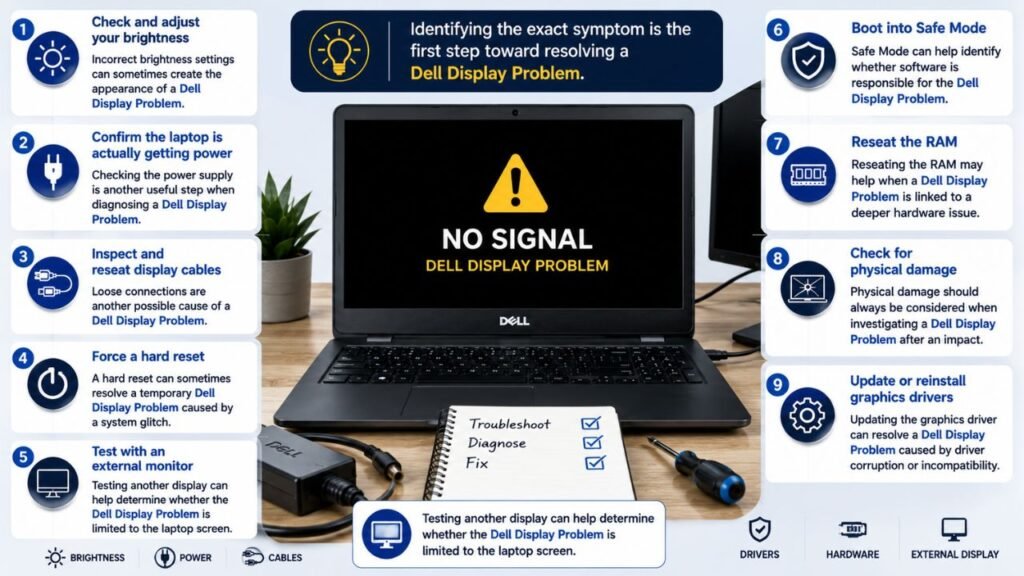
Identifying the exact symptom is the first step toward resolving a Dell Display Problem.
1. Check and adjust your brightness
It sounds obvious, but a shockingly high number of “why is my laptop screen black” cases are simply a brightness setting that dropped to zero after an update or accidental key combination. On most Dell laptops, press Fn + F11 or Fn + F12 (varies by model) to raise brightness. Give it a few seconds and some panels take a moment to respond. Incorrect brightness settings can sometimes create the appearance of a Dell Display Problem.
2. Confirm the laptop is actually getting power
A depleted or failing battery is a frequent cause of a dell laptop black screen. Plug the laptop directly into a wall outlet using the original charger, and let it charge for at least 15–20 minutes before testing again. If the charging light doesn’t illuminate, the issue may be the charger, the port, or the battery itself rather than the display. Checking the power supply is another useful step when diagnosing a Dell Display Problem.
3. Inspect and reseat display cables
If you’re using an external monitor or docking station, loose HDMI, USB-C, or DisplayPort connections are a very common laptop screen display problem dell users run into. Unplug and firmly reconnect every cable. For the internal display, a loose ribbon cable is harder to diagnose without opening the chassis if the screen flickers before going black, this is a strong signal the internal cable is the culprit. Loose connections are another possible cause of a Dell Display Problem.
4. Force a hard reset
A hard reset clears residual power in the system and can resolve many low-level glitches responsible for a laptop black screen fix without touching a single setting.
- Hold the power button for 20–30 seconds with the laptop unplugged.
- If the battery is removable, take it out during this step.
- Reconnect the battery (if removed) and the charger.
- Press the power button once to restart normally.
A hard reset can sometimes resolve a temporary Dell Display Problem caused by a system glitch.
5. Test with an external monitor
Connecting an external display (via HDMI or USB-C) is the single best diagnostic step for isolating whether your dell display problem is the screen itself or something further upstream. Use Fn + the display-output key (often F8) to cycle output modes.
- If the external monitor shows an image: the internal panel or its cable is the likely fault continue to the driver and update fixes below, and consider professional screen repair if the picture doesn’t return.
- If the external monitor is also black: the issue lives deeper in the system (GPU, RAM, or motherboard), and you should move to fix 7 and 9.
Testing another display can help determine whether the Dell Display Problem is limited to the laptop screen.
6. Boot into Safe Mode
Safe Mode loads Windows with a minimal driver set, which helps confirm whether a laptop black screen problem is being caused by third-party software or a graphics driver conflict. If your Dell laptop turns on but the screen is black in normal mode yet displays correctly in Safe Mode, a recently installed program or driver update is almost certainly the trigger uninstall the most recent addition and test again. Safe Mode can help identify whether software is responsible for the Dell Display Problem.
7. Reseat the RAM
For a laptop no display situation that persists even on an external monitor, a loose or misseated RAM module is a common and often overlooked cause. Power down completely, remove the battery/unplug the charger, open the RAM access panel, and firmly reseat each memory module. This single step resolves a surprising number of “why does my laptop screen go black” cases that look like major hardware failure but aren’t. Reseating the RAM may help when a Dell Display Problem is linked to a deeper hardware issue.
8. Check for physical damage
If your laptop was recently dropped, knocked, or sat on, physical damage is a realistic explanation particularly for a black line on laptop screen dell devices show, or for cases where part of my laptop screen is black while the rest works normally. Inspect the lid and hinges for visible stress marks. Unfortunately, physical panel damage typically requires professional replacement rather than a home fix. Physical damage should always be considered when investigating a Dell Display Problem after an impact.
9. Update or reinstall graphics drivers
Outdated or corrupted graphics drivers are one of the most frequent root causes of a dell laptop display issue, especially a dell laptop white screen appearing right after a Windows update. From Safe Mode or a working display session:
- Open Device Manager.
- Expand Display adapters.
- Right-click your Dell graphics driver and select Uninstall device.
- Restarting the laptop windows will attempt to reinstall a default driver automatically.
- Once booted, download the latest driver directly from Dell’s official support site for your exact model.
When Is a Dell Display Problem Serious Enough for Professional Repair?
Most cases of laptop screens not turning on resolve with the steps above. But certain signs point to hardware failure that home troubleshooting won’t fix:
- The external monitor test shows a working image, but the internal panel stays black even after the driver reinstalls a failed panel or internal cable.
- A visible black line on laptop screen Dell devices that doesn’t move or change usually indicates physical panel damage.
- The screen shows color distortion, unusual patterns, or a growing dark patch, a failing backlight or panel connector.
- The laptop shows no display on both the internal screen and an external monitor even after RAM reseating and a hard reset potential motherboard or GPU-level failure.
In these situations, further self-troubleshooting risks voiding warranty coverage or causing additional damage. A certified technician can run diagnostic tests that isolate the exact failed component and confirm whether a screen replacement or a deeper motherboard repair is needed.
Preventing Future Dell Display Problems
A few habits meaningfully reduce your chances of encountering another dell screen problem down the line:
- Keep Windows and Dell driver updates current, but avoid installing major updates the moment they’re released and wait a few days for early bug reports to surface.
- Avoid closing the lid on cables, cords, or small objects, which stresses the internal display cable over time.
- Use a padded sleeve when transporting your laptop to reduce the risk of the impact damage behind most black lines on laptop screen dell cases.
- Periodically check Device Manager for driver warnings before they escalate into a full laptop display not working scenario.
Also read about: Pressure Marks on Laptop Screen | What is Manus AI? | Context7 AI | Perplexity Comet
Conclusion
A Dell laptop black screen can be frustrating, but it does not always mean the laptop has completely failed. In many cases, the problem is linked to brightness settings, power issues, display drivers, loose cables, or temporary software glitches. Simple steps such as increasing brightness, checking the charger, performing a hard reset, and connecting an external monitor can help identify the cause.
If the problem started after a Windows update, Safe Mode and graphics driver troubleshooting may resolve the issue. Physical signs such as black lines, partial screen blackouts, discoloration, or damage after an impact may indicate a faulty panel or connector that requires professional repair.
The key is to troubleshoot systematically rather than immediately assume the screen needs replacement. If the display remains black after the recommended checks, especially on both the laptop and an external monitor, professional diagnosis is the safest next step.
Frequently Asked Questions About Dell Display Problems
Q1: Why is my Dell monitor suddenly showing no display?
Check the power cable, display cable, input source, and graphics connection. A faulty cable or hardware issue can also cause no display.
Q2: Why does my Dell screen keep flickering?
Screen flickering can be caused by loose cables, incorrect refresh-rate settings, outdated graphics drivers, or a failing display.
Q3: How do I fix a Dell monitor with a black screen?
Restart the monitor, check the video cable, select the correct input source, and test the monitor with another device.
Q4: Why does my Dell monitor say “No Signal”?
“No Signal” usually means the monitor is not receiving video input. Check the HDMI, DisplayPort, or other connected cable and the computer’s output settings.
Q5: Can a damaged HDMI cable cause Dell display problems?
Yes. A damaged or loose HDMI cable can cause a blank screen, flickering, distorted images, or intermittent display.
Q6: Why is my Dell laptop screen showing lines?
Lines on the screen may result from display-driver issues, a damaged screen, loose internal connections, or graphics hardware problems.
Q7: Can updating graphics drivers fix a Dell display problem?
Yes, if the issue is software-related. Updating or reinstalling the graphics driver can sometimes resolve flickering, distortion, or display glitches.
Q8: When should I get my Dell display professionally checked?
Get professional help if the problem continues after checking cables, settings, drivers, and another display, especially if physical screen damage is visible.




2 Comments