

 By
By Green dots on laptop screen displays usually point to one of five things: GPU overheating, VRAM damage, a loose display cable, a stuck pixel, or a corrupted graphics driver. If you’ve noticed green dots on screen while gaming, watching videos, or even just browsing, the good news is that most cases are diagnosable in under ten minutes and many are fixable without opening your laptop or spending a rupee. Understanding the cause of green dots on laptop screen problems can help you choose the right troubleshooting method. This guide was last reviewed in August 2026 to keep the diagnostic steps current.
This guide walks through every known cause of the problem, how to tell them apart, step-by-step fixes ranked from free to professional repair, and answers to the questions people search most when this issue shows up.
What Are Green Dots on a Laptop Screen?
Green dots on screen are small, often pixel-sized marks that appear as bright or dark green spots on your display. They can be static (staying in one place) or dynamic (moving, flickering, or multiplying). Some users describe them as green pixels on laptop screen that only show up under certain conditions during gaming, video playback, or when the laptop lid is moved. The appearance of green dots on laptop screen displays can vary depending on whether the problem is caused by hardware or software.
The pattern matters more than the color itself. A single dot that never moves is very different, diagnostically, from a spreading cluster of green artifacts that appears in BIOS before Windows even loads.
Read more about: What Is Agentic AI? | Perplexity Comet | What is Manus AI? | Context7 AI
What Causes Green Dots on Laptop Screen?
There are five common causes behind this problem. Each one has a distinct behavior pattern that helps you narrow down the source before attempting any fix. Identifying these patterns is the first step toward fixing green dots on laptop screen problems.
1. GPU Overheating
This is the single most common cause of green pixels on laptop screen issues, especially on gaming laptops and thin ultrabooks with limited airflow. When the graphics processor runs above safe operating temperatures for extended periods, it can produce visual artifacts and green dots are frequently the earliest warning sign, well before a laptop crashes or shows a black screen. Gaming laptops are particularly vulnerable to green dots on laptop screen issues when cooling performance declines.
We regularly see this on ASUS ROG, Lenovo Legion, HP Omen/Victus, Dell G-series, and Acer Predator laptops, particularly units that are 2-4 years old and haven’t had their cooling vents cleaned.
2. Hidden VRAM Damage
Video RAM (VRAM) sits on the graphics card and stores the data your GPU renders to the screen. When individual VRAM modules are damaged usually from sustained heat exposure you get localized green dots on screen that tend to appear first during graphics-heavy tasks like gaming, video editing, or 4K playback.
This is the cause that trips up most people, because reinstalling drivers or restarting the laptop does nothing to fix physically damaged VRAM. If the artifacts only appear under heavy graphics load and never in BIOS, VRAM stress is a strong suspect. VRAM-related green dots on laptop screen problems may become more noticeable as GPU workload increases.
3. Loose or Damaged Display Cable
Laptops route a thin ribbon cable from the motherboard to the display panel through the hinge. Years of opening and closing the lid gradually wear this cable down. The telltale sign of a cable-related issue is that the dots shift, flicker, or multiply when you adjust the screen angle. This makes the display cable an important component to check when diagnosing green dots on laptop screen symptoms.
4. Stuck or Dead Pixels
Sometimes what looks like a graphics problem is much simpler: a single stuck sub-pixel that’s permanently showing green. Unlike GPU or VRAM issues, a stuck pixel stays in the exact same spot every single time you turn the laptop on; it never moves, spreads, or worsens under load. A fixed green spot is therefore one of the easiest forms of green dots on laptop screen problems to identify.
5. Corrupted Graphics Drivers
Driver corruption after a Windows update or an unstable software install can cause green pixels on laptop screen that look alarming but are actually harmless and fully reversible. If the dots vanish after a driver restart or clean reinstall, software not hardware is the culprit. Driver troubleshooting should be one of the first steps when dealing with green dots on laptop screen issues.
Green Dots on Screen Nvidia: A Special Case
If you’re running an Nvidia GPU, green dots on screen nvidia issues deserve their own note, because Nvidia cards have a few failure patterns that are worth knowing before you assume the worst:
- Driver mismatch after Windows Update: Nvidia GPUs are sometimes served outdated or mismatched drivers through Windows Update, which can cause temporary green artifacting that clears up once you install the correct driver directly from Nvidia.
- VRAM thermal throttling: Nvidia laptop GPUs (especially RTX 30-series and 40-series mobile chips) run VRAM hotter than desktop equivalents, so green dots on screen nvidia symptoms during gaming are more likely to be heat-related than on integrated graphics.
- DDU (Display Driver Uninstaller) resolution: A high proportion of Nvidia-specific green dot cases resolve after a clean driver wipe using DDU followed by a fresh install a step regular Device Manager uninstalls sometimes miss.
Understanding the GPU involved can make diagnosing green dots on laptop screen problems easier.
If you have an AMD or Intel integrated GPU, the same overheating and driver-corruption logic applies, but this specific search spikes among Nvidia users because their higher-power mobile chips run hotter under sustained gaming loads.
Causes Summary Table
Use the following table to quickly identify what may be causing green dots on laptop screen displays.
| Cause | Most Affected Devices | Quick Identifier |
| GPU Overheating | Gaming laptops, thin ultrabooks | Worsens during gaming or heavy load |
| VRAM Damage | Nvidia/AMD dedicated GPU laptops | Appears during video or gaming, not BIOS |
| Display Cable Damage | Laptops 3+ years old | Dots move when lid angle changes |
| Stuck/Dead Pixels | Any LCD/LED laptop panel | Fixed position, never spreads |
| Driver Corruption | Windows laptops post-update | Disappears after driver reset |
Read more: Red Tint on Screen | Bug in Monitor | Dbrand Casetify Lawsuit
How to Diagnose Green Dots on Laptop Screen
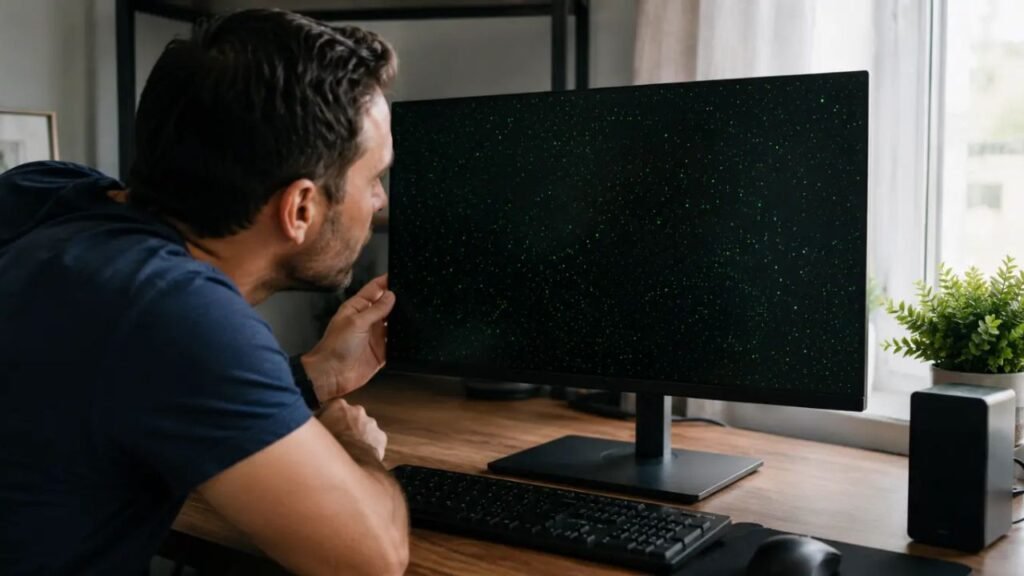
Before attempting any fix, spend five minutes running through this diagnostic sequence. Most people skip this step and end up replacing parts or paying for repairs that were never actually faulty. These checks can help determine whether green dots on laptop screen displays are caused by the panel, cable, GPU, VRAM, or software.
Step 1: Connect an External Monitor
Plug your laptop into an external display via HDMI or USB-C. If the green dots on screen disappear on the external display, the problem is isolated to your laptop’s built-in panel or its display cable, not the GPU itself. This simple test can quickly narrow down the source of green dots on laptop screen problems.
Step 2: Check for Dots in BIOS
Restart the laptop and enter BIOS (usually F2, F10, or Del at startup, depending on your manufacturer). If the artifacts are visible in BIOS before Windows loads and before any driver runs the cause is almost certainly hardware, not software. Seeing green dots on laptop screen displays before Windows starts is an important diagnostic clue.
Step 3: Flex the Lid Gently
With the laptop on, slowly open and close the lid a few degrees at a time. If the green pixels on laptop screens shift, flicker, or intensify as you move the hinge, you’re likely looking at a display cable issue. Changes caused by moving the lid strongly suggest that the green dots on laptop screen issue is related to the display connection.
Step 4: Restart the Graphics Driver
Press Windows + Ctrl + Shift + B. The screen will briefly flash or go black for a second. If the green dots on screen disappear after this, driver corruption is the most likely explanation. This is a useful first test when green dots on laptop screen displays appear after a software update.
Step 5: Monitor GPU Temperature Under Load
Use a monitoring tool (HWMonitor, MSI Afterburner, or GPU-Z) while running a game or video export. Sustained temperatures above 85-90°C strongly correlate with overheating-related artifacting. Temperature monitoring is especially useful when green dots on laptop screen problems occur during demanding workloads.
Diagnosis Summary Table
| Symptom | Likely Cause |
| Dots appear on both laptop and external monitor | GPU or VRAM issue |
| Dots only appear on laptop’s built-in screen | Display panel or cable problem |
| Dots shift when lid is moved | Ribbon cable damage |
| Dots visible in BIOS | Hardware failure |
| Dots disappear after driver restart | Driver corruption |
| Single dot, always same spot | Stuck pixel |
| Dots worsen only during gaming | GPU overheating or VRAM stress |
How to Fix Green Dots on Laptop Screen
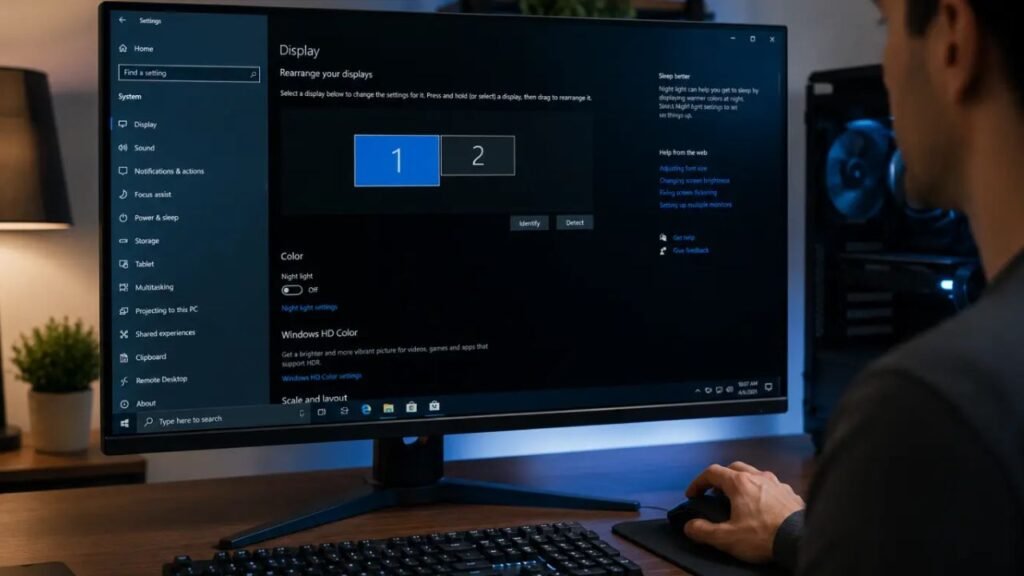
Start with the free software fixes before considering paid repairs. Most cases resolve at Steps 1-3 below. Once you identify the likely cause, you can choose the appropriate solution for green dots on laptop screen problems.
Fix 1: Restart the Graphics Driver (Free)
- Press Windows + Ctrl + Shift + B.
- Wait for the screen to flash.
- Check whether the green dots on screen have cleared.
This resolves temporary rendering glitches without a full reboot. This quick method is worth trying before attempting more advanced fixes for green dots on laptop screen displays.
Fix 2: Reinstall or Clean-Wipe GPU Drivers (Free)
- Open Device Manager and expand Display Adapters.
- Right-click your graphics card and select Uninstall Device.
- Restart your laptop.
- Download and install the latest driver directly from NVIDIA, AMD, or Intel’s official site not a third-party updater.
For persistent Nvidia-related cases, using Display Driver Uninstaller (DDU) in Safe Mode before reinstalling gives a cleaner result than a standard uninstall, since it removes leftover driver files that Device Manager often misses. Microsoft’s own guidance recommends going directly to the manufacturer’s site if driver issues persist after a standard update, since third-party or outdated driver sources are a common source of instability. A clean driver installation can resolve some software-related green dots on laptop screen problems.
Fix 3: Lower GPU Temperature (Free)
- Shut down the laptop completely.
- Clean the cooling vents with compressed air.
- Elevate the laptop or use a cooling pad for better airflow.
- Avoid using the laptop on beds, blankets, or cushions that block vents.
- Recheck temperatures under load after 24 hours of normal use.
Better airflow can reduce the chance of recurring green dots on laptop screen issues caused by excessive heat.
Fix 4: Run a Pixel Repair Tool (Free)
- Confirm the green dot stays in a fixed position (a sign of a stuck pixel, not a GPU issue).
- Run a pixel-repair or pixel-refresh utility for 15-20 minutes.
- Recheck the display.
This only helps with stuck pixels; it won’t do anything for GPU- or cable-related artifacting screen. Pixel-refresh tools are specifically useful when green dots on laptop screen displays are caused by stuck pixels.
Fix 5: Replace the Display Cable (Paid)
- Power off the laptop and disconnect the battery if removable.
- Access the display cable via the hinge or rear panel (best left to a technician on most modern ultrabooks).
- Reseat or replace the ribbon cable.
- Reassemble and test.
In India, display cable replacement for green dots on laptop screen issues typically costs ₹1,500-₹4,000 depending on the laptop model and city. Professional cable replacement may be necessary when green dots on laptop screen displays change as the lid moves.
Fix 6: GPU or Panel Repair (Technician Needed)
If green dots on screen appear in BIOS, Safe Mode, and on an external monitor simultaneously, the GPU itself is likely failing. At this stage, DIY fixes won’t help professional diagnosis is the only reliable next step. Persistent green dots on laptop screen problems across multiple displays require professional hardware diagnosis.
Fix Summary Table
| Fix | Cost (India) | Difficulty | Best For |
| Driver Restart | Free | Easy | Temporary rendering glitches |
| Driver Reinstall/DDU | Free | Easy | Corrupted or mismatched drivers |
| Cooling Improvements | Free | Easy | Overheating-related artifacts |
| Pixel Repair Tool | Free | Easy | Single stuck pixels |
| Display Cable Replacement | ₹1,500-₹4,000 | Medium | Dots that shift with lid movement |
| GPU/Panel Repair | ₹4,000-₹15,000+ | Hard | Dots in BIOS + external display |
When Professional Repair Is Necessary
Stop attempting DIY fixes and consult a technician if:
- Green dots on laptop screen artifacts appear during BIOS startup, before Windows loads.
- The dots spread rapidly or multiply within days.
- Green dots on screen appear alongside crashes, freezing, or blue screens.
- The issue persists across an external monitor, Safe Mode, and after a full driver wipe.
For laptops older than 4-5 years, comparing the repair quote against the cost of a new machine is worth doing before committing to a motherboard-level GPU repair, since component-level graphics repairs on integrated GPU laptops can run close to half the price of a new budget laptop.
Prevention Tips That Actually Work
- Keep GPU temperatures below 80-85°C during sustained gaming or rendering sessions.
- Clean cooling vents every 3 months, more often in dusty environments.
- Use a cooling pad for extended gaming or video editing sessions.
- Never use the laptop on soft surfaces like beds or cushions that block intake vents.
- Update graphics drivers only from the manufacturer’s official website, following Microsoft’s official driver update guidance rather than third-party “driver booster” tools.
- Let the laptop cool for a few minutes before closing the lid after heavy gaming.
- Avoid overclocking integrated or dedicated GPUs beyond manufacturer-rated limits, especially on thin laptops with limited cooling headroom.
Conclusion
Green dots on a laptop screen can be frustrating, especially when they appear suddenly or become noticeable during gaming, video playback, or other demanding tasks. However, these display artifacts do not always mean that your laptop screen needs replacement. Stuck pixels, graphics driver problems, overheating, loose display connections, GPU faults, and VRAM issues can all produce similar symptoms. Start by checking whether the dots appear consistently, testing the laptop with an external monitor, restarting the graphics driver, and monitoring GPU temperatures. If the problem disappears after a driver update or cooling, it may be software- or temperature-related. Persistent green pixels that appear in BIOS or across multiple displays are more likely to indicate hardware trouble. Identifying the exact cause before paying for repairs can help you avoid unnecessary expenses. If basic troubleshooting does not resolve the issue, consider getting the laptop inspected by a qualified technician, particularly when the problem is worsening or accompanied by screen flickering, crashes, or graphical distortion.
Also read: BMPS 2026 Semi Finals Full Schedule | Grand Theft Auto VI (GTA 6) | Valorant Esports 2026
Frequently Asked Questions
Q1: Why do green dots appear on my laptop screen randomly?
Green dots may appear randomly due to GPU glitches, overheating, a loose display cable, or a stuck pixel.
Q2: Can green dots disappear after restarting a laptop?
Yes. If the issue is caused by a temporary graphics or driver glitch, restarting may remove the green dots.
Q3: Why are green dots only visible on dark backgrounds?
Green pixels can be easier to notice on dark backgrounds because the color contrast makes display abnormalities more visible.
Q4: Can a loose laptop screen cable cause green dots?
Yes. A damaged or loose display cable can cause green dots, flickering, or other visual artifacts, especially when the lid moves.
Q5: Why do green dots increase when I move my laptop screen?
If the dots change when you adjust the lid, the display cable or connection may be damaged or loose.
Q6: Can a green dot on a laptop screen spread?
A single stuck pixel usually does not spread, but increasing or spreading green artifacts can indicate a GPU, VRAM, or display hardware problem.
Q7: How do I know if green dots are caused by the GPU?
Connect an external monitor. If the green dots appear on both displays, the GPU or VRAM may be responsible.
Q8: Is it safe to keep using a laptop with green dots?
Usually, yes for minor pixel issues, but worsening dots, crashes, overheating, or artifacts on multiple displays should be checked by a technician.



3 Comments