
 By
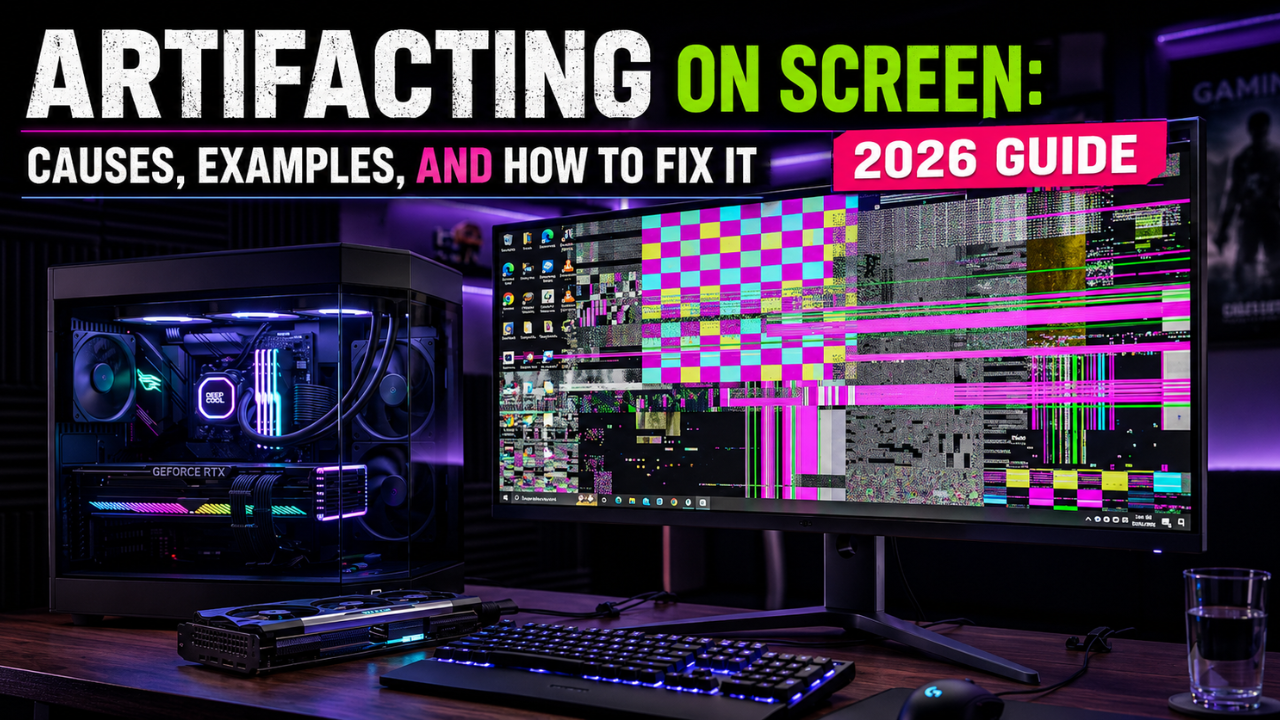
By You probably have an issue with screen artifacting if your screen shows pink lines, checkerboard patterns, flickering, or even some combination of all of these. It is one of the most well-known problems with computer displays, and yet, one of the most misunderstood computer display problems. Artifacting on Screen is one of the most common display issues faced by PC and laptop users today. Even though it may be somewhat alarming if not frightening to see on your display, not every case of screen artifacting means it is the end for your computer. This guide will walk you through the logic behind screen artifacting, which will identify its cause, teach you the ways to determine if your issue is caused by faulty hardware or buggy software, and most importantly the quickest, most cost effective methods to fix the problem. Understanding Artifacting on Screen early can prevent expensive hardware damage.
Also read about: AI Controlling Humans Has Already Started | Pressure Marks on Laptop Screen | Bug in Monitor
What Is Artifacting on Screen?
Artifacting on screen does exactly as its name implies. Pixels become corrupted. Shapes become distorted. Colors begin flickering or flashing. Artifacting on Screen occurs when corrupted visual data appears on your monitor. All this on your display while the actual content remains unchanged. Keep in mind, your display cannot create images on its own, your GPU sends the data and your display shows whatever is sent. Sometimes the data is corrupted, which can occur during computation or even when the data is being sent through the cable to your display. Your display contains the corrupted data and shows it as noise. That is the display rendering corrupted data. Diagnosing Artifacting on Screen begins by identifying where the corrupted data originates.
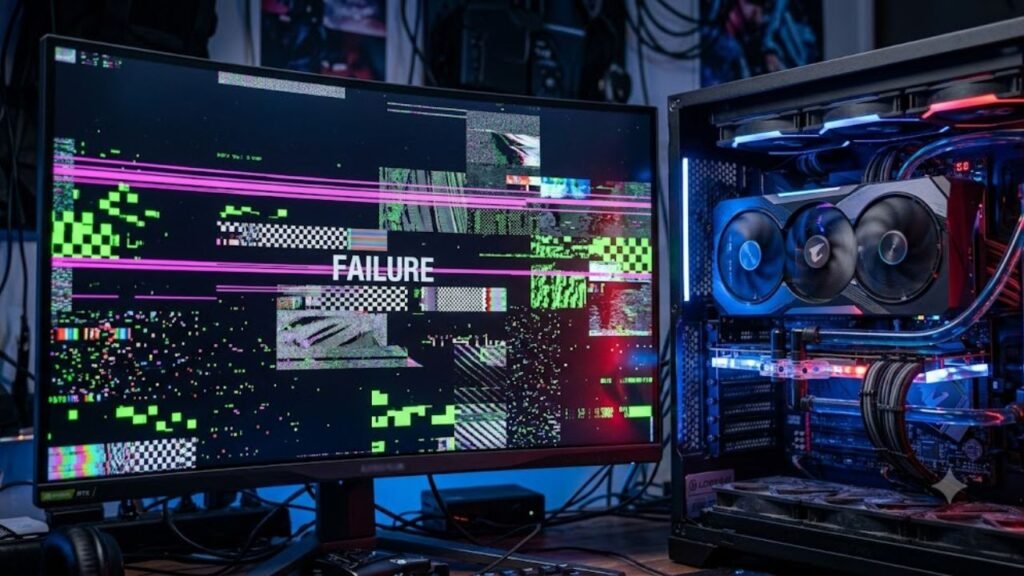
Thinking in this way about artifacting can help you identify the source of the problem more rapidly. The GPU sends the corrupted data if the data is corrupted at the source, which means the problem is your GPU. If the data is corrupted during computation, the problem is with the cable or port. In either case, it’s likely you are experiencing a symptom with respect to the data and will need to investigate further to identify the root cause of the issue. Learning about Artifacting on Screen makes troubleshooting much easier.
Common Types and Examples of Screen Artifacts
Different forms of Artifacting on Screen indicate different hardware or software problems. Not all screen artifacts look the same, and the type you’re seeing is often the biggest clue to the cause. Here are the most frequent computer artifacts examples users report:
- Block pixelation: A colorful pixelated pattern that makes small squares. Usually indicative of a problem with a computer’s video memory. This is probably the most well-known computer artifact.
- Colored snow: The screen is covered in static-like specks of different colors, usually a problem with normal functioning when the computer is overheating or overclocked.
- Flickering or flashing: Screens that flicker or strobe. Usually a problem with a loose/not functioning cable or a corrupted driver.
- Garbled textures: The most noticeable type of texture artifact is the distortion of smearing and stretching of color in 3D Games.
- Horizontal or vertical distortion: Thin lines that run across the screen usually are a symptom of a damaged cable.
- Screen tearing: The upper and lower sections of the screen become misaligned. This is a different failure as it is a display sync problem and can be solved with vertical sync or G-Sync.
Knowing what display artifact you are experiencing will in most cases guide you to the problem without the need for a diagnostic tool. Recognizing these patterns of Artifacting on Screen helps identify the root cause.
What Causes GPU Artifacts and Display Glitches?
Most cases of screen artifacting can be attributed to any combination of the following six causes. Some are quick fixes, while others may require replacement parts. There are several reasons behind Artifacting on Screen, ranging from simple driver issues to failing hardware.
1. Overheating GPU: Most GPUs will overheat and become unstable after long gaming sessions. Unstable silicon will produce calculation errors and users will see artifacts of those errors. Most of the time, dust, old thermal paste, or bad case airflow are the issues.
2. Failing VRAM: VRAM will degrade with long heavy use over time. This can cause artifacts and may require a new graphics card since this will fail after mining as well.
3. Bad Cable: Bad cables (HDMI, USB-C, etc.) may be too low bandwidth for your display and can show artifacts due to signal loss or packet data. Cable-related Artifacting on Screen is more common than many users realize.
4. Corrupted/Conflicting Drivers: A failed driver or old graphics driver can send bad instructions to your monitor and cause artifacts. Monitor artifacting will be resolved after a fresh installation of the driver.
5. Unstable Overclocking: GPU cores or memory can be pushed over the safe limit to cause this issue. Overheating is common under long sustained loads while overclocking.
6. Power delivery issues: If your power supply is weak or failing, your power delivery port on your laptop is unable to deliver adequate wattage to an External Display, all components are unable to receive a constant and stable supply of power. Most users interpret this as flickering, and assume the GPU is the failing component. Persistent Artifacting on Screen should never be ignored.
Hardware vs. Software: The 5-Second Triage
Before going through the fixes, run through this swift guide. For the most part, it will categorize the majority of these cases into two clear groups. Correctly identifying Artifacting on Screen saves time during troubleshooting.
- Likely software: Artifacts on the display only happen in a particular game or application, while the desktop, browser, and BIOS are clear.
- Likely hardware: Artifacts are present on the Windows desktop, or, even more importantly, on the BIOS boot screen, before any operating system is loaded.
This second point is more significant than most people consider. Problems in the BIOS cannot be caused by a piece of software, since the BIOS is before any operating system or driver. This is also why going into the BIOS (usually by hitting the Delete key or F2 when booting the computer) is a good software troubleshooting step. If distorted lines or blocks are present in the BIOS, this is a hardware problem (most likely a dying GPU or bad cables). This quick test can determine whether Artifacting on Screen is caused by hardware or software.
How to Fix Artifacting on Screen
Consider the following steps based on the issues you suspect (hardware or software) from easiest to most difficult, most expensive to least. Follow these solutions to resolve Artifacting on Screen effectively.
- Always check the cable first, as it is the most commonly neglected component. Make sure the cable is securely fastened and try using another HDMI or DisplayPort cable. Display cables that are VESA-certified and meet your display’s specifications for its max resolution and refresh rate minimize display artifacts. Loose cables are one of the leading causes of Artifacting on Screen.
- Use the Display Driver Uninstaller (DDU) to delete your graphics card’s drivers, then install the latest graphics drivers. This is best done in Safe Mode. The other driver issues will be eliminated and the previously reported issues with the game or app will be solved. Driver updates often eliminate Artifacting on Screen immediately.
- Set your graphics card settings back to default (no overclocks). If Afterburner shows your graphics card still has the higher memory or core clocks, then you discovered your artifacts-causing overclock.
- Check your graphics card. If your graphics card is constantly above 85° C, you will want to clean it out and replace the thermal paste.
- If your power supply cannot deliver power to your graphics card, rendering or gaming will produce artifacts. This is most common with older power supplies.
- Eliminate VRAM failure. Blocky checkerboard patterns that appear as artifacts in the BIOS and beyond are usually the result of failing video memory. Typically in this scenario, the only option is replacing the entire GPU or sending it to the manufacturer since this type of repair is not feasible at home. Severe Artifacting on Screen usually indicates GPU memory failure.
When It’s a Portable Monitor or Laptop Screen, Not Your GPU
Artifacting on your screen may be caused by issues that extend beyond your graphics card. If you use portable monitors or laptop screen extenders that connect to your computer through a single USB-C cable, flickering monitors, or brief black screens may be signs of power starvation, not GPU issues. During high system load, a power spike may exceed the Port’s power supply and cause a sudden brightness crash and restart of the monitor. Artifacting on Screen is not always caused by the graphics card.
Providing a new graphics card will not solve this issue. It requires better power delivery. Connecting an external wall charger through the monitor’s power delivery port will solve this problem. Doing this will allow the external monitor to gain power and not compete with your laptop. Proper power delivery can completely eliminate Artifacting on Screen on portable displays.
Preventing Future Screen Artifacts
Preventing Artifacting on Screen is easier than repairing damaged hardware. After tackling the immediate concern, consider the following habits to further minimize the possibility of recurrence:
- Keep updating the GPUS drivers, but don’t rush to install each beta release.
- Clean out dust from your fans and GPU at least every few months, more frequently if in a hot or dusty environment.
- Don’t max out every overclock, and offer a margin of stability.
- Use VESA certified cables.
- Keep an eye on the GPU temps especially after long gaming and/or rendering sessions.
If you use a secondary or portable display. use one that supports power delivery instead of one that uses a single port. These habits greatly reduce the chances of Artifacting on Screen returning.
Read more: Top 10 Solar Inverter in India | Apple Price Hike India 2026 | Valorant Esports 2026
Conclusion
Screen artifacting can be a software or hardware issue. Artifacting on Screen should never be ignored. It’s a fairly simple problem to troubleshoot most of the time. Knowing the types of display artifacts and how to identify whether the issue is related to hardware or software can help avoid unnecessary repairs and expenses. You can avoid display artifact issues with advanced preventative care including regularly scheduled maintenance, updated graphics drivers, display cables of the highest quality, and ensuring proper cooling for your system. Most cases of Artifacting on Screen can be fixed without replacing expensive hardware. If all of these suggestions are implemented and none of them have resolved the issues, call a professional. You are far more likely to save your investment and your data if you contact someone for help while the problem is still small. Knowing how to diagnose Artifacting on Screen can save both time and money.
Frequently Asked Questions
Q1: What is screen artifacting?
Screen artifacting is a display problem that causes flickering, colored lines, checkerboard patterns, distorted textures, or unusual pixels on the screen.
Q2: Can overheating cause screen artifacting?
Yes. An overheating GPU can become unstable and produce visual glitches, especially during gaming or other demanding tasks.
Q3: Can screen artifacting damage my computer?
Persistent artifacting may indicate a failing GPU, VRAM, overheating, or power issue. Ignoring repeated artifacts can potentially lead to more serious hardware problems.
Q4: Why does my screen show colored lines?
Colored lines can result from a damaged display cable, faulty GPU, failing VRAM, or a problem with the laptop or monitor panel.
Q5: Can updating graphics drivers fix artifacting?
Yes. If outdated or corrupted graphics drivers are causing the problem, performing a clean driver installation may resolve the artifacts.
Q6: Why does artifacting happen only during gaming?
Gaming places heavy demand on the GPU, which can expose overheating, unstable overclocking, VRAM problems, or power delivery issues.
Q7: Should I replace my GPU if I see artifacts?
Not immediately. First check the cable, drivers, GPU temperature, power supply, and overclocking settings. Persistent artifacts in the BIOS may indicate a hardware failure.
Q8: How can I stop screen artifacting?
Try replacing the display cable, updating drivers, returning GPU settings to default, improving cooling, and checking power delivery. If the problem continues, professional hardware diagnosis may be needed.




5 Comments